If you work with more than one organization in UnitConnect, you do not need a different account for each one. The organization that needs to add you can invite your existing login. From there, you can move between workspaces from your account menu while each organization keeps control of the role and properties available to you.
This guide explains how to join an organization, switch workspaces, choose the one that opens after sign-in, and remove an organization when you no longer work there.
Join an organization with your existing login
An organization sends an email invitation with an Accept invite button and an invitation code. The invitation is tied to the email address it was sent to, works one time, and expires after seven days. If the invite has expired or was withdrawn, ask the organization to send a new one.
When you already use UnitConnect, select Accept invite in the email. If necessary, select Sign in to join and sign in with the invited email address. You can choose Make this my default workspace if you want that organization to open after sign-in. Then select Join and switch. You keep the same login and password; adding the organization does not create another account to remember.
If you are new to UnitConnect, the invitation asks you to create and confirm a password. It must have at least eight characters, including a letter and a number. Select Join followed by the organization name to complete the first sign-in.
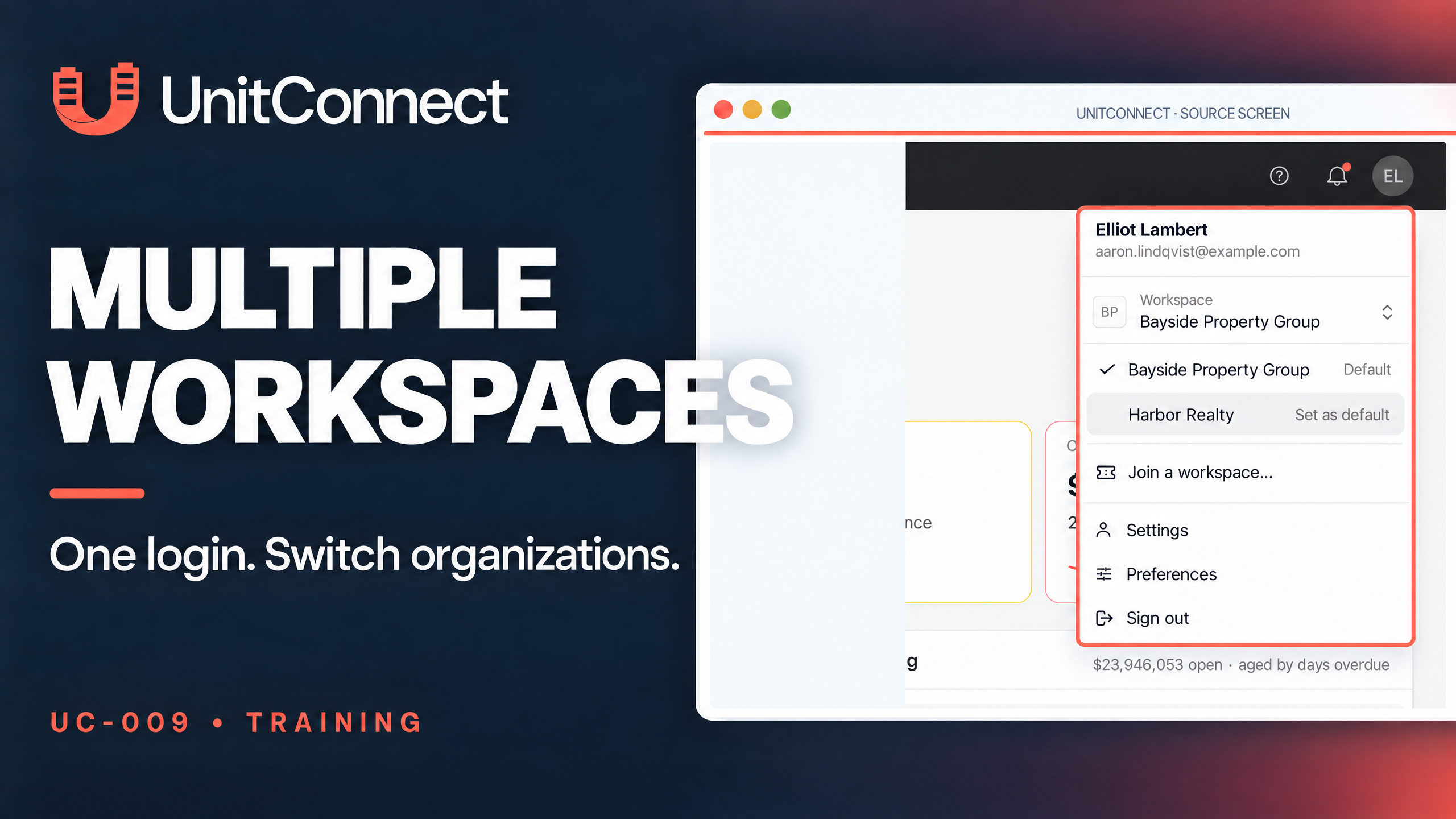
You can also enter an invitation code from the avatar menu. Choose Join a workspace…. If you already have more than one workspace, open the Workspace box first and find that option at the bottom of the list.
Switch between organizations from the Workspace menu
Select your avatar to open the account menu. The Workspace box below your name identifies the organization you are using now. Select it, then choose another organization from the list. If you work in many organizations, enter part of a name in Find a workspace to narrow the list.
UnitConnect reloads into the selected organization and shows the records available through the access it gave you. Other open UnitConnect tabs switch as well, which keeps your tabs aligned with the same organization.
Set the workspace that opens after sign-in
Open the avatar menu and select the Workspace box. Hover over the organization you want, then select Set as default. The workspace labeled Default is the one UnitConnect opens after you sign in.
If you later lose access to that default workspace, UnitConnect opens the organization your login belongs to instead.
Understand password access and leaving a workspace
Your login belongs to the first organization where you had an account. Change your password while you are working in that organization. When you are in an organization that invited you, go to Settings > Sign-in. You will see a button that lets you switch to the organization where your login belongs instead of Change password.
To leave an organization, open your avatar menu and go to Settings > Sign-in. In Workspaces, select Leave beside the organization, then select Leave again to confirm. You cannot leave the organization your login belongs to. If you leave the organization you are currently using, UnitConnect returns you to that original organization. To work in the removed organization again, ask it to invite you again.
FAQ
Can I use the same UnitConnect login in multiple organizations?
Yes. Each organization can invite your existing login. Your roles and property access can differ between organizations.
Can I set a default organization for sign-in?
Yes. In the account menu, open Workspace, hover over an organization, and select Set as default.
Why can’t I leave one of my workspaces?
The organization your login belongs to cannot be left. It is also the workspace you use to change your password.