Use UnitConnect Global Search to find records, move to main pages, and start common tasks from the search control in the header. The current tutorial recording shows opening the menu, revisiting recent records, browsing Jump To and Actions, typing to find matches, and choosing whether a result opens in the current or a new browser tab. This article pairs that recording evidence with the fuller official Help Center reference.
Open Global Search
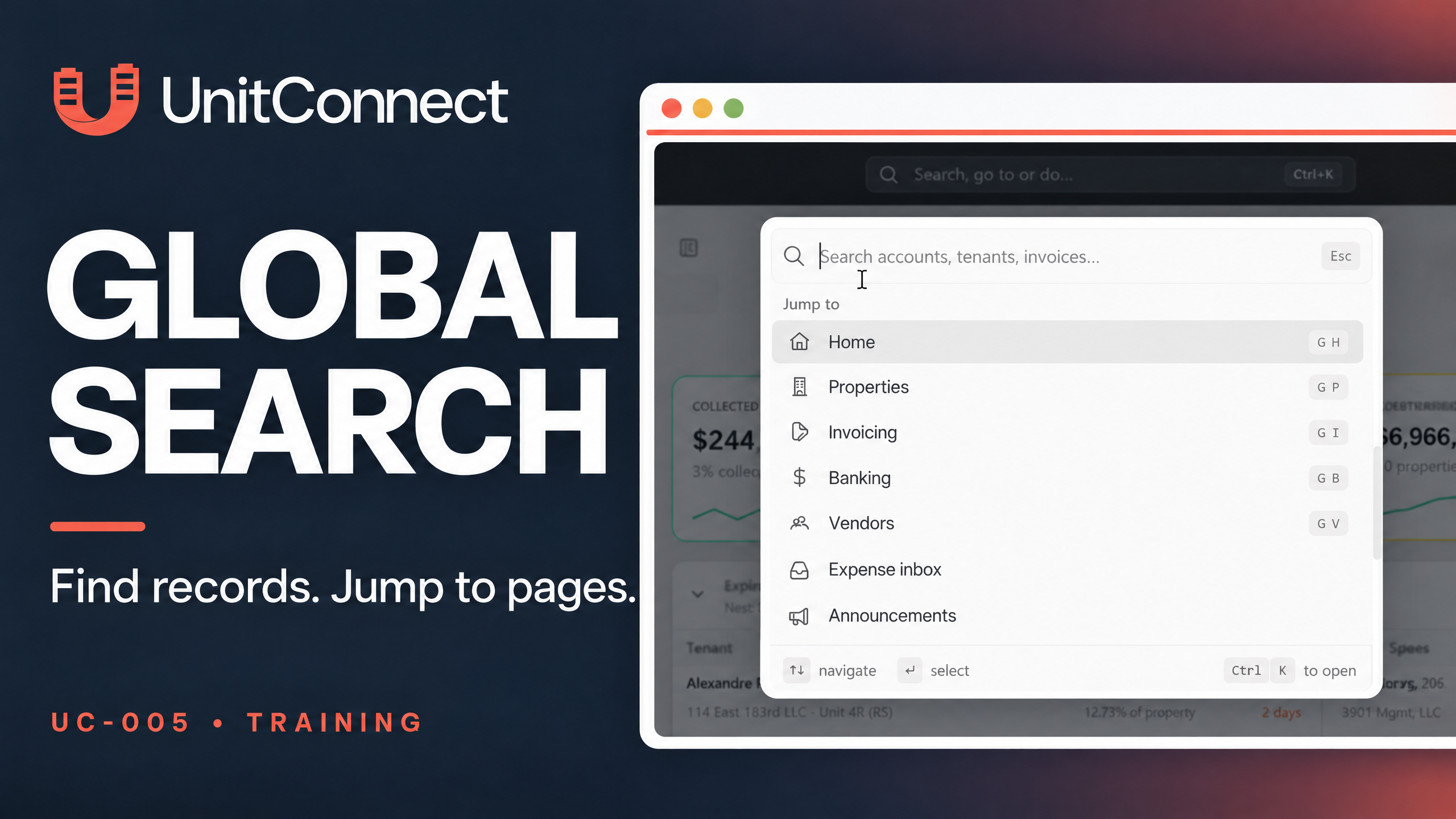
Click Search, go to or do… in the middle of the UnitConnect header to open Global Search. The recording also shows the Ctrl+K shortcut beside the search bar. According to the Help Center, on a small screen you can use the magnifying-glass icon; Command+K works on a Mac, and pressing the same shortcut again closes the palette.
Review Recent, Jump To, and Actions
The recording begins with the Recent section, which shows records you have visited. Select a record to open its page in the current tab, or select the arrow icon beside that result to open it in a new tab. The Help Center adds that Recent lists the records opened most recently, with the newest first.
Scroll to Jump To to move to pages such as Home, Properties, Invoicing, Banking, and Vendors. The recording displays keyboard shortcuts alongside those page names. The Help Center’s broader list also includes Announcements, Tasks, Reports, Settings, and Admin; it lists Expense inbox when the company uses that feature.
Continue to Actions for common starting points. In the current recording, the examples are adding a property, tenant, or vendor, creating a task, and generating invoices. The current Help Center article lists Add new property…, Add new vendor…, Add new task…, and Create invoice… before you type. Use the options shown in your own palette, because the recording and article do not display exactly the same action examples.
Find a record with search
The recording demonstrates numeric search and matching records appearing as you type. The broader Help Center explains how to search by account or invoice number, tenant or other record name, phone number, and email address. It specifies that you should type at least two characters and provides these additional search details:
- Search by a full or partial tenant, vendor, or property name.
- Enter an account or invoice number; you can begin the number with #.
- Enter at least seven phone-number digits with or without punctuation. The last seven digits also work when you do not have the area code.
- Type the beginning of an email address, including the @ symbol. A tenant portal login email can also be searched.
The Help Center groups matching results under categories such as Tenants, Vendors, Properties, Units, Accounts, Expenses, and Invoices. When a query looks like a number, account, expense, and invoice results appear first. Search also filters Jump To and Actions; for example, typing rep can surface Reports.
Result groups follow your role’s permissions. The Help Center specifically notes that the Invoices group requires permission to view invoicing. It also says that a phone number or email address used on more than 20 tenant contact details is excluded from search, preventing a shared office contact from returning a very long list.
Choose how to open a result
As shown in the recording, select a result name to open the record in the current tab, or select its arrow icon to open it in a new tab.
For keyboard navigation beyond what the recording demonstrates, the Help Center says you can use the Up Arrow and Down Arrow keys to move through results, Enter to open the highlighted result, Ctrl+Enter to open it in a new browser tab, and Esc to close the palette.
Use actions for the record already on screen
The official Help Center also documents a record-specific palette. While viewing a tenant, property, or vendor, press / to open a palette scoped to that record. It lists related links and available actions, and you can type to filter the list. To return to an all-record search, press Backspace in an empty search box or select the × on the record name at the beginning of the field.
Navigate main areas with shortcut pairs
The recording shows that page shortcuts are displayed in Jump To. The following shortcut behavior comes from the official Help Center: when you are not typing in a field, press [ to collapse or expand the sidebar. You can also press G, release it, and press a second key within about one second:
- G, H opens Home; G, P opens Properties; G, I opens Invoicing.
- G, B opens Banking; G, V opens Vendors; G, T opens Tasks; G, R opens Reports.
FAQ
Why do I not see invoice results in Global Search?
Visible result groups follow the permissions assigned to your role. The Help Center says the Invoices group requires permission to view invoicing.
Can I use navigation shortcuts while completing a form?
Use global shortcuts only when you are not typing in a field, as specified in the Help Center.