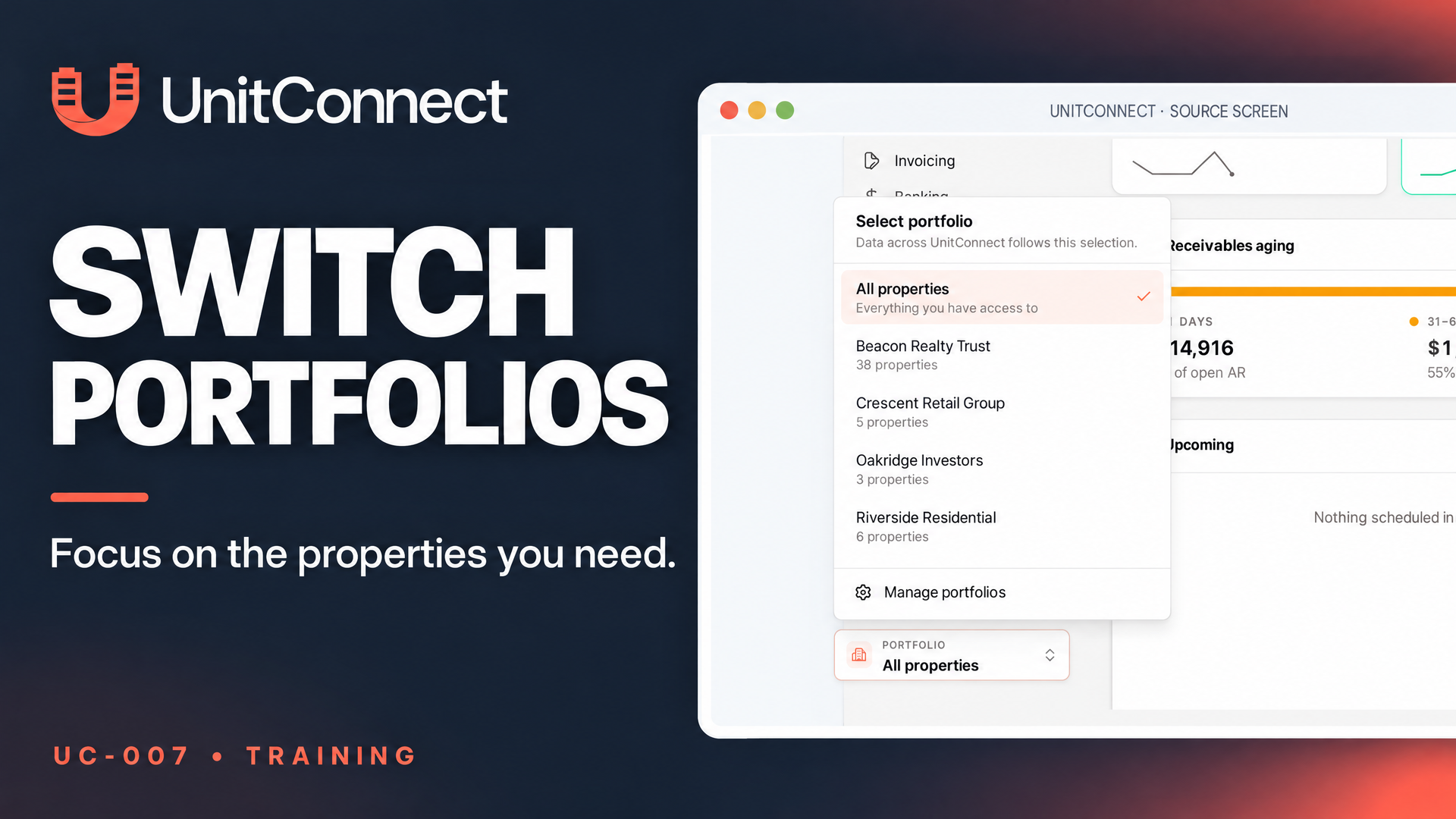
When you work with more than one group of properties, the UnitConnect portfolio switcher helps you focus the workspace on the group you need right now. A portfolio is a named group of properties, such as one owner’s buildings or a set of retail centers. Selecting a portfolio narrows what you see throughout UnitConnect to the properties in that group.
This is a viewing and workspace focus tool. It does not change which properties you are allowed to access. That distinction matters when you are moving between teams, owners, or property groups.
Open the portfolio switcher
Look at the bottom of the UnitConnect sidebar for the Portfolio box. The box shows the portfolio that is currently active. Click it to open the Select portfolio list.
The list shows available portfolios and the number of properties in each one. Choose the portfolio that matches the group of properties you want to work with. For a complete workspace view, choose All properties. This option shows every property you already have access to.
If your organization has many portfolios, the official help article says a Search portfolios box appears at the top of the selection list. Use it to locate the portfolio you need. The recording describes this control, but it is not shown in its example list, so it may not be visible in every portfolio list.
Know what changes after you switch
A portfolio selection affects more than the sidebar label. UnitConnect reloads the data across Home, Properties, Tenants, Invoicing, reports, and other pages for the properties in the newly selected portfolio. This gives each portfolio its own focused working context without asking you to filter every page separately.
If you are viewing one tenant or property record when you make the change, UnitConnect returns you to that area’s list. That record may not belong to the portfolio you selected, so the list provides the appropriate starting point for the new context.
The official help article says your selection is remembered on the device, including after you reload the page. That can make it easier to pick up where you left off when you regularly work in the same portfolio.
Keep access and portfolio management separate
Switching portfolios never grants access to a property you could not already see. An administrator controls the properties available to each user. If you need a change to your available properties, review the permissions guidance in the official Manage users help article with the appropriate administrator.
Some users will also see Manage portfolios at the bottom of the selection list. This entry is available only to users allowed to manage portfolios, and it opens Admin > Portfolios. If that control is available to you, see the official Create and manage portfolios guide before changing a portfolio setup.
Quick checklist
- Open the Portfolio box at the bottom of the sidebar.
- Select a portfolio, or choose All properties for everything you can access.
- Use Search portfolios when it appears in a longer list.
- Expect workspace data to reload for the selected group.
- Remember that a portfolio changes focus, not permissions.
For the exact supported workflow, see the official UnitConnect Help Center article: Switch between portfolios.
Frequently asked questions
Does choosing a portfolio change my property permissions?
No. A portfolio narrows the properties shown in UnitConnect, but it never expands your property access. Property access is set per user by an administrator.
Why did my open tenant or property record close after I switched?
UnitConnect returns you to the relevant list because the record you had open may not belong to the newly selected portfolio.
Why do I not see Manage portfolios?
That option appears only for users who are allowed to manage portfolios.