The UnitConnect Home dashboard is designed to give you a portfolio-level snapshot without sending you to several different pages first. It brings current-cycle billing and occupancy figures together with open-balance aging, upcoming dates, and items that may need action. The most useful way to read it is to set the portfolio scope first, then move from the top summary cards into the detail that matters for your next decision. The companion video gives a portfolio-snapshot tour; this article also includes clearly identified official Help Center guidance beyond the actions shown in that video.
Start with the portfolio in scope
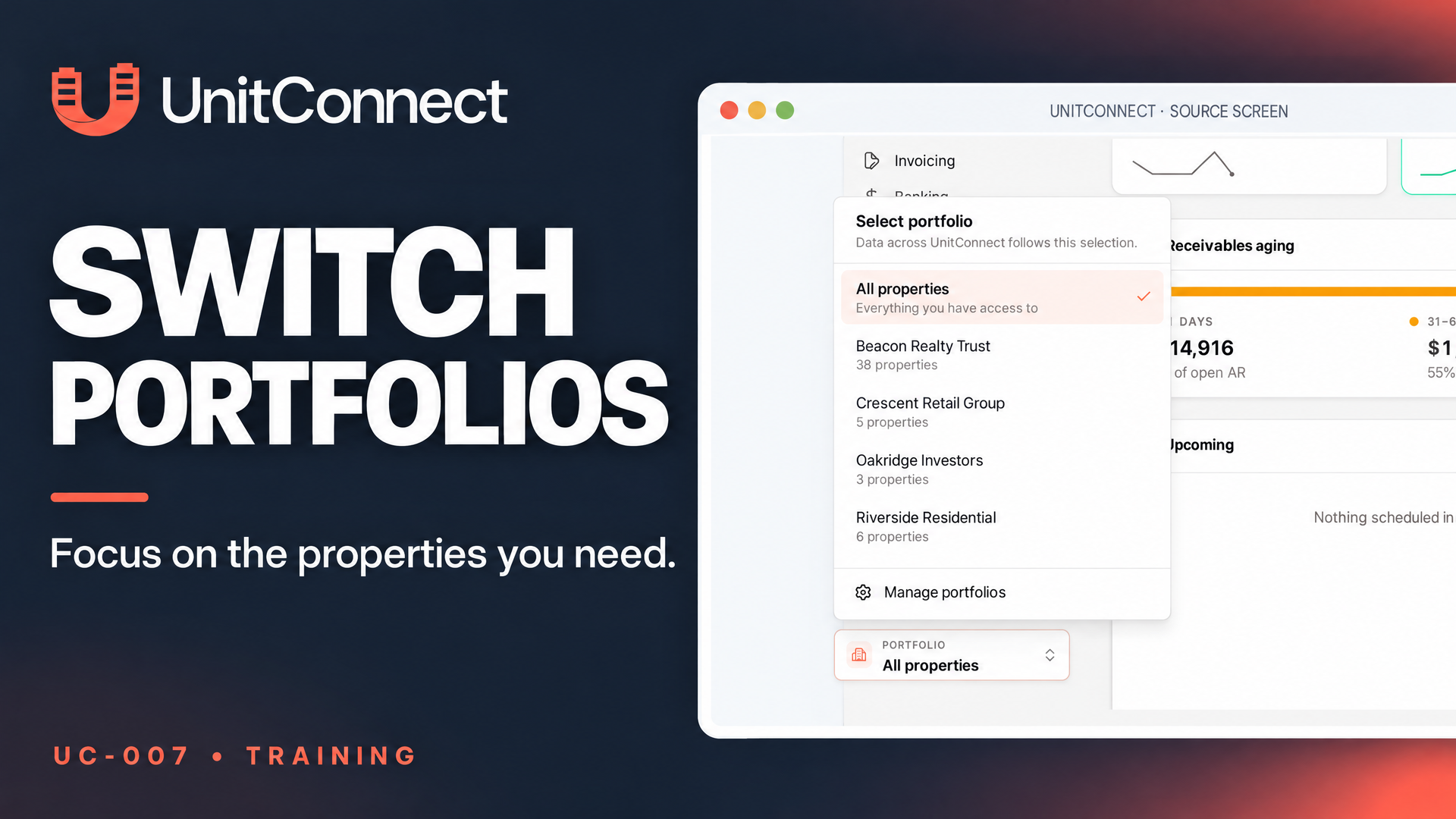
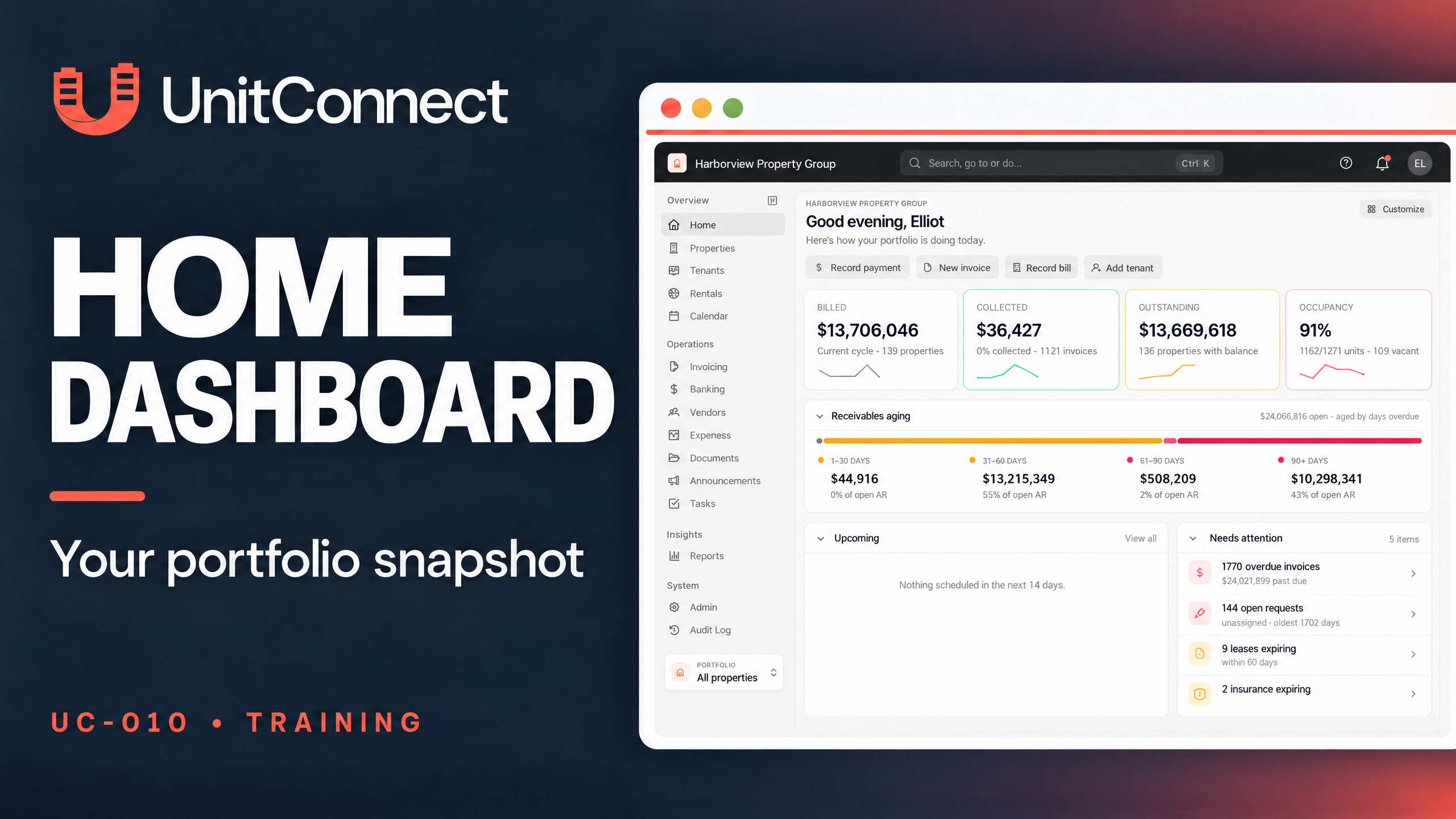
Home is the first page you see after you sign in. To return to it later, select Home in the sidebar or press G followed by H. Before interpreting any number, look at the Portfolio selector at the bottom of the sidebar. Every Home figure follows that selection. All properties shows everything you have access to; a different portfolio narrows the dashboard to that group of properties.
The quick actions below the greeting are shortcuts to common work: Record payment, New invoice, Record bill, and Add tenant. The official Help Center adds that an account with no properties has Add property, Add tenant, and Create invoices instead. That empty-account state is not demonstrated in this portfolio-snapshot video.
Read the current-cycle summary cards
The four figure cards are a quick read of the current billing cycle for the properties in scope:
- Billed shows the total billed this cycle and the number of properties.
- Collected shows the amount collected, the portion of billed that has been collected, and the invoice count.
- Outstanding shows the amount still open for the cycle and the number of properties with a balance.
- Occupancy shows the occupied percentage alongside occupied, total, and vacant unit counts.
Each card includes a small recent-month trend line. Select a card when you need to open the related page and work from the underlying records rather than the dashboard summary.
Use receivables aging to understand open balances
The Receivables aging card separates open tenant balances by overdue age: 1–30 days, 31–60 days, 61–90 days, and 90+ days. Each bucket shows both the amount and its share of the total open balance. This is a useful complement to the current-cycle Outstanding figure because it focuses on how long tenant balances have been overdue.
A common distinction matters farther down the page. The Outstanding balances card counts every open invoice, not only invoices from the current billing cycle. Its total therefore matches Receivables aging, not the top Outstanding card.
Review dates and items that need attention
The official Help Center describes Upcoming as a day-by-day list for the next 14 days, with examples including lease expirations, move-ins, insurance expirations, rent increases, calendar events, and scheduled automations. These examples are broader help guidance, not a claim that each appears in the video. The guide also explains that selecting a tenant item opens that tenant, while View all opens a side panel with a 14-, 30-, or 90-day horizon and filters for Leases, Rent increases, Automations, or Events.
The Needs attention card is the complementary action list. It can surface overdue invoices, open maintenance requests that are not assigned, leases or insurance expiring within 60 days, and rent increases coming up within 60 days. Selecting an item takes you to its matching list.
Go deeper and shape Home around your work
Further down, Home can show collection performance by property, collected rent, vacancies, upcoming rent increases, expiring leases, recent payments, recent activity, and your assigned tasks. The official help explains that selecting a property in collection performance opens it, while All properties opens the complete property list. These click-through behaviors are additional help guidance, not demonstrated outcomes in this portfolio-snapshot video.
You can collapse or expand a card by selecting its title. To change which cards you see or how they are arranged, select Customize at the top right of Home. The separate Customize your Home dashboard guide covers hiding cards, arranging them, and setting card horizons. If you need to reset the dashboard’s scope first, use the official Switch between portfolios guide.
Frequently asked questions
Does Home always show every property?
No. Home follows the portfolio selected in the sidebar. All properties shows the properties you have access to, while another selection scopes the data to that portfolio.
Why can Outstanding balances differ from Outstanding?
The top Outstanding card is a current-billing-cycle figure. Outstanding balances includes every open invoice, so it aligns with Receivables aging instead.
Official source
For additional detail, see the official UnitConnect Help Center article, Your Home dashboard.