Keeping your personal details current and knowing where to change your password makes day-to-day work in UnitConnect easier. The same Settings area also includes a preference for whether printed invoices include their attached documents. This guide follows the official UnitConnect Help Center workflow for profile information, password verification, and invoice-printing preferences.
Open your personal settings
Select your avatar in the top-right corner of UnitConnect and choose Settings. The settings navigation includes Profile and Sign-in. If your account has permission to view invoicing, it also includes Invoicing.
This matters because each task has its own location. Profile controls your contact details. Sign-in contains the password workflow. Invoicing contains the printing preference described below.
Update personal details in Profile
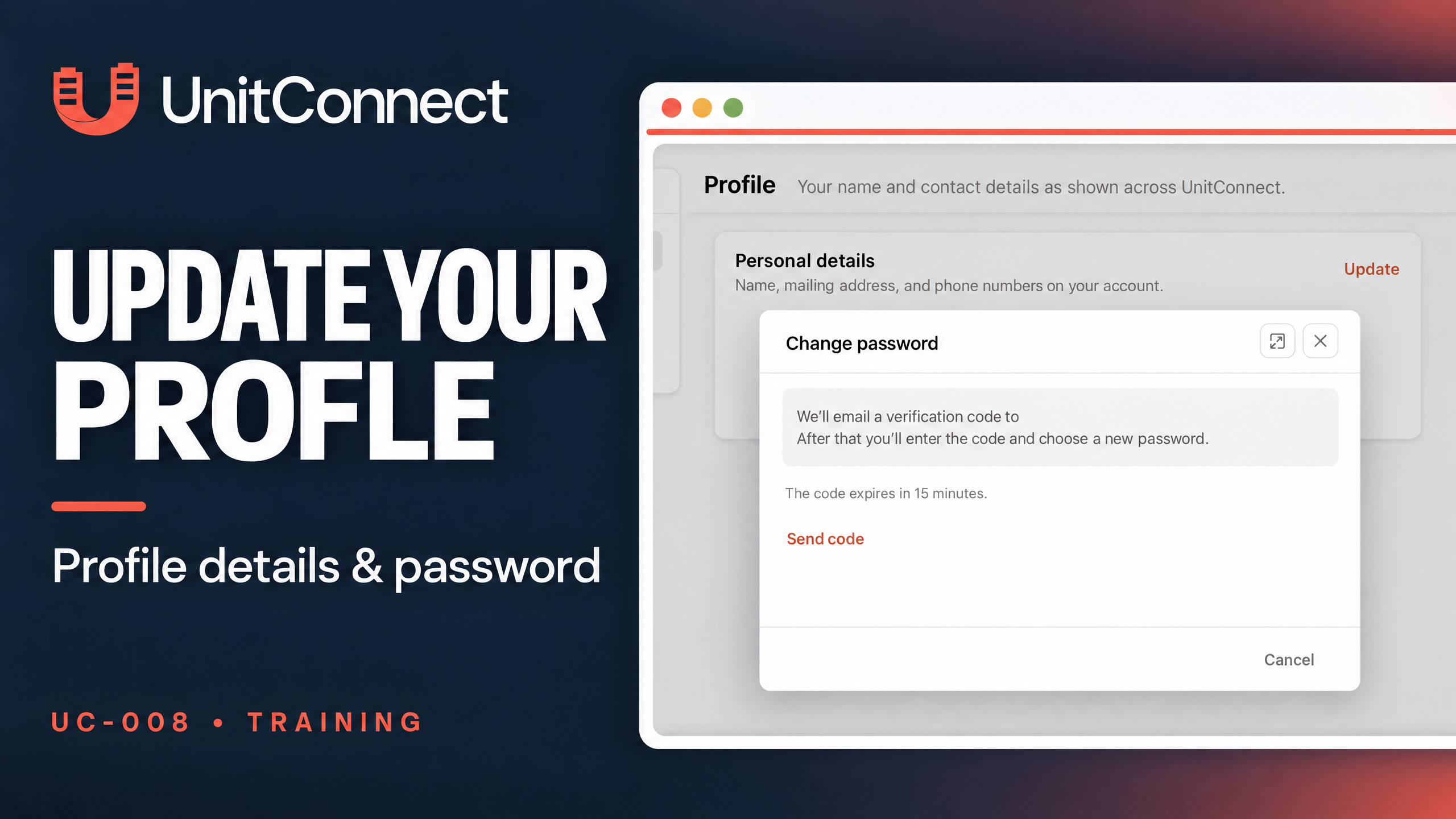
Open Profile and find Personal details. Select Update, make the needed changes, and select Save when finished.
The official workflow lists the available fields as first name, last name, address line 1, address line 2, city, state, ZIP, phone, mobile, and fax. Use the fields that apply to your information; the Help Center does not require you to edit every field.
View official screenshot: UnitConnect Profile page showing Personal details and the Update link
Change your UnitConnect password with email verification
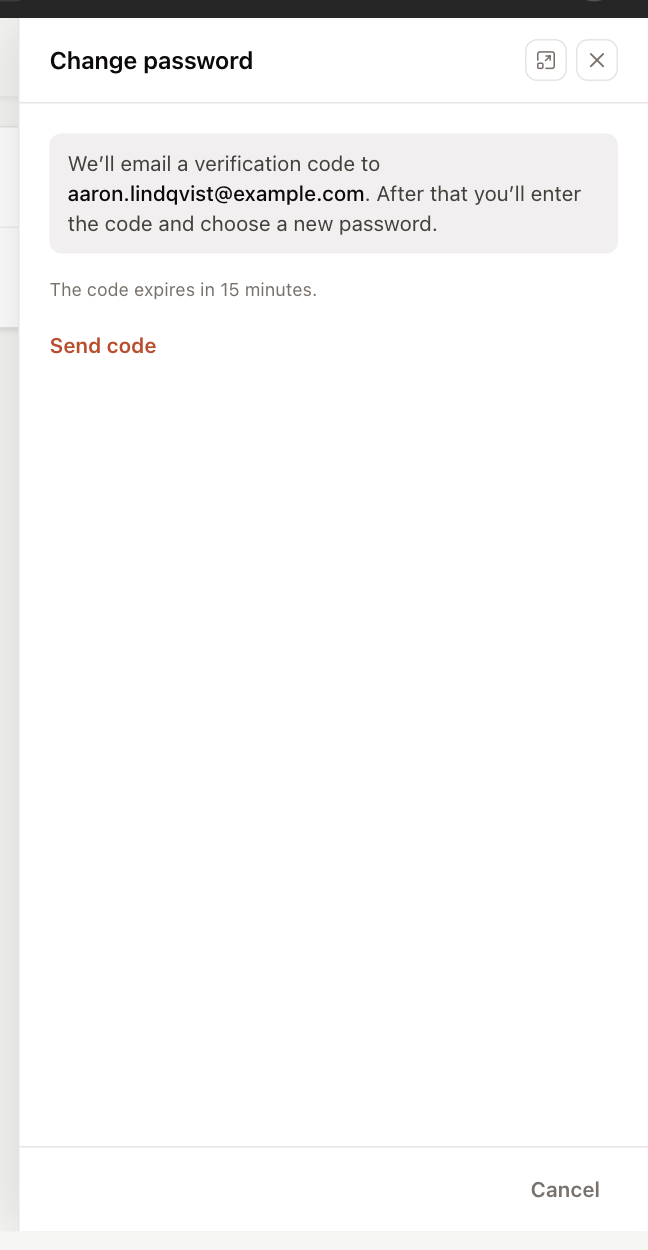
Go to Settings > Sign-in. In the Password row, select Change. The Change password panel first asks you to select Send code. UnitConnect sends the verification code to the login email address, and the code expires after 15 minutes.
When the email arrives, enter its 6-digit code in Email verification code. Then enter the new password and type it again in Confirm new password. A valid password must have at least eight characters, including at least one letter and one number. Select Change password to finish.
If you do not see the email, check your spam folder before selecting Resend code. You can select Back to return to the first step. Your login email is shown under Login, but you cannot change that email yourself; contact an administrator if it needs to be updated.
If you work in several organizations, your password belongs to the organization associated with your login. When you are working in another organization, Sign-in shows a button to switch to the organization where you can change the password. If you cannot sign in and do not know your current password, use Forgot password? on the sign-in page instead.
Choose whether printed invoices include attachments
Open Settings > Invoicing and turn on Print with attachments if you want attached documents to appear after the statement whenever you print an invoice. The setting saves immediately.
The official help article does not include an Invoicing-screen screenshot, so use the labeled setting exactly as described rather than looking for an illustrated toggle in this guide. The Invoicing section appears only for people with permission to view invoicing. This preference does not affect tenant invoice links: those links always include attachments.
Quick FAQ
Can I change my UnitConnect login email myself?
No. The Help Center says to ask an administrator to change the login email.
How long does the password verification code last?
The code expires 15 minutes after it is sent. You can use Resend code if needed.
What makes a valid new password?
Use at least eight characters with at least one letter and one number.
Official source and related help
This draft is based on the official Help Center article: Update your profile and password. For related situations, see Manage users, Work in several organizations, and Sign in and reset your password.