A property’s Units tab is the working roster for the spaces at that property. It brings unit details, occupancy, tenancy, size, and pro-rata share into one place, so a team can review the list before making a targeted update or a broader correction.
Start with the property roster
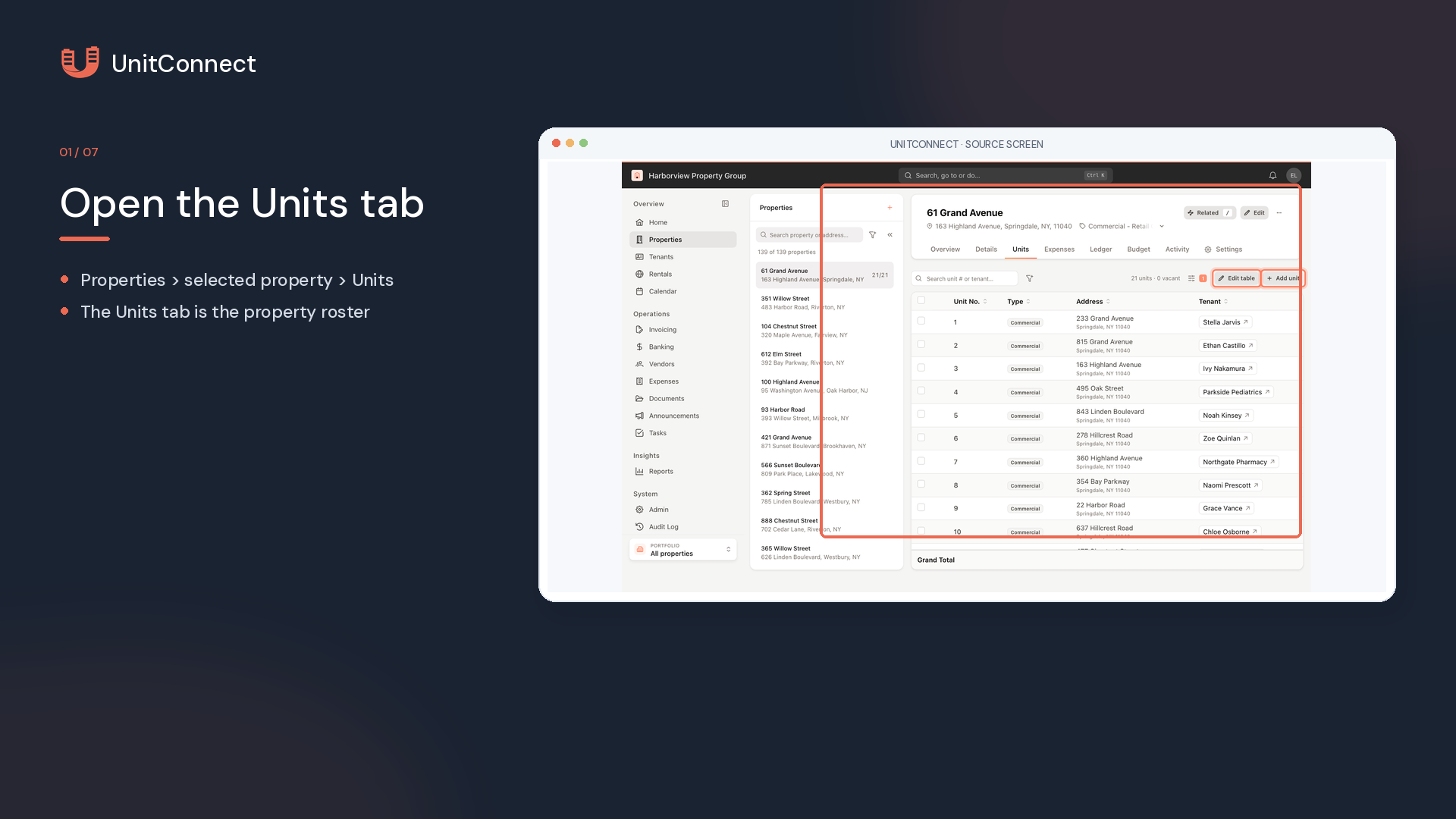
Open Properties in the sidebar, select the property, and choose Units. The table shows the unit number, type, address, tenant, size, and pro-rata share. The line above the table provides counts for units, linked units, and vacant units, while the Grand Total row totals the property’s size and pro-rata share.
Use the column headers to sort the list. Search unit # or tenant… helps locate a specific record, and the adjacent filter can narrow the roster by type, sub-type, or occupancy. Display settings can show or hide the Sub-type column. These review tools are useful before updating a record because they keep the property-wide context visible.
Add a new unit with complete details
Select Add unit to open the unit form. Enter the Unit Number, choose a Unit Type, and add a Sub-type if it applies. Then add Unit Size in square feet and Pro-rata Share as a percent.
Confirm the address before saving. Address line 1, City, State, and ZIP are required. Apt / suite is optional. Select Add unit when the record is ready. Keeping size and pro-rata data current matters because UnitConnect uses pro-rata shares for CAM, tax, insurance, and assessment splits; those values also appear in rent roll and vacancy reports.
Open a record or make bulk corrections
Click a unit row to open its record panel. The panel groups the information into Details, Linked units, and Tenancy. Use the arrows at the top to move between units. Choose Edit unit to revise an individual record, then choose Save changes.
For a property-wide cleanup, choose Edit table. Unit number, type, sub-type, address, size, and pro-rata share become editable directly in the table. Watch the Pro-rata indicator in the Editing bar: it represents the total for the entire property, not only the rows currently visible, and turns green at 100%.
If a save attempt finds that the shares do not total 100%, UnitConnect warns that pro-rata calculations would use the wrong total. Choose Keep editing to correct the values, or Save anyway only when that is the intended outcome. Cancel discards pending bulk edits.
Link related units and handle removals carefully
Parking spaces and storage rooms can be linked to the main unit used by the occupant. From the main unit’s menu or record panel, choose Link units…, select the related units, choose an Effective from date, and select Link unit. A vacant unit can instead use Link to a unit… to attach to a selected main unit. Linked units appear beneath the main unit in the roster.
Linking must be enabled for the company, and the user’s role must have unit-linking permission. The same permission principle applies to Edit table, Add unit, and Remove. If a control is not visible, contact an administrator rather than assuming the workflow is unavailable. When removal is appropriate, choose Remove from the unit menu and confirm it. Unit removal cannot be undone.
Frequently asked question
Why is the Pro-rata indicator important?
The indicator checks the property-wide pro-rata total. A total other than 100% can affect calculations that use pro-rata shares, so UnitConnect provides a warning before you save an incomplete total.
Continue learning
- Read the official help article: Add and manage units
- Set up a property first: Add a new property
- Learn the surrounding workspace: The Properties list and property overview