Adding a property in UnitConnect starts with a five-step wizard. It brings the property’s core details, unit list, people, and operating account together before the property is created. That makes it useful to gather a few essentials first: the street address, building type, planned unit count, and an operating bank account. You can create an account in the wizard or select one already in UnitConnect.
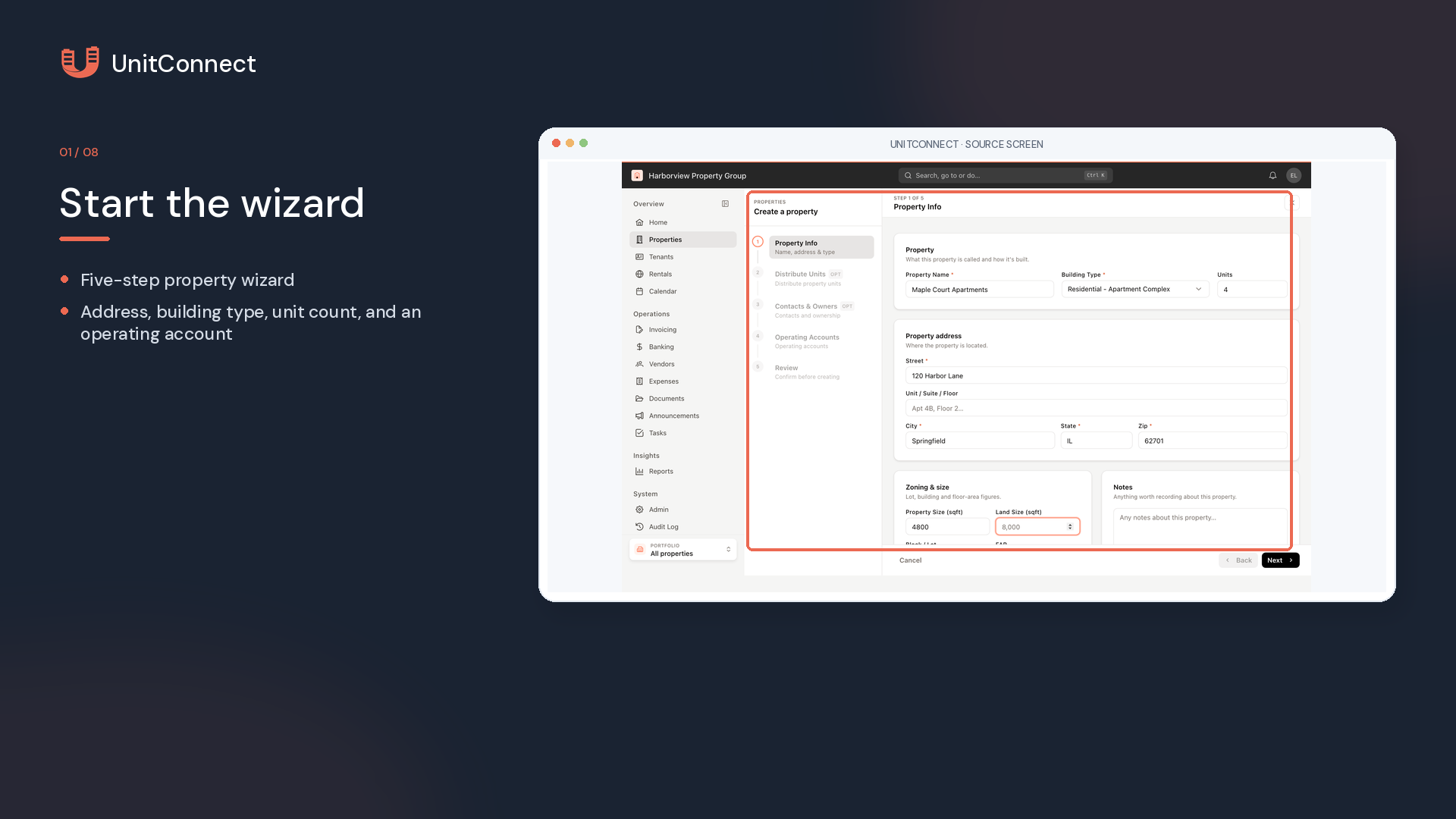
Start in Properties from the sidebar and choose New property. If the property list is empty, use Add property in the center of the page instead. The wizard shows five stages on the left: Property Info, Distribute Units, Contacts & Owners, Operating Accounts, and Review. The sections marked optional can be completed later, but an operating account is required before you can finish.
1. Complete Property Info
On Property Info, enter the Property Name, choose the Building Type, and enter the number of Units. Then complete the property address with Street, City, two-letter State, and ZIP. Unit, Suite, or Floor is optional.
You can also record zoning and size details, Notes, and Portfolios. If you know the building’s Property Size (sqft), add it before moving forward. UnitConnect uses that number as a starting point when it divides size across the initial unit list.
2. Review and distribute the units
The Distribute Units step creates one row per unit, initially numbered in order. It also spreads the property size and a 100% share evenly across those rows. Open a row or use its pencil icon to edit the unit number, sub-type, size, share percentage, or mailing address. Finish the row with the check mark.
Use Add Unit to add a row and the trash icon to remove one. If the number of units changes, select Redistribute to spread size and share evenly again. Check the Total row before continuing: it turns green when all shares add to 100%.
Once this step contains a unit list, the Units field on Property Info is locked to that list. Make additions or removals here rather than returning to change the original count.
3. Add people when needed
Contacts & Owners is optional. Select Add contact to record a manager or another person connected to the property. The wizard accepts a first name or role, with optional phone and email.
For owners, use Add New or Select Existing. A new owner includes a name, title, ownership share, and As of Date. One important building-type distinction applies: for Condominium and Cooperative properties, the Owners card is hidden, so that stage includes contacts only.
4. Add an operating account
Every property needs at least one operating bank account. On Operating Accounts, select Add New to enter the Bank, Account Type, and Account Name. Nickname, Account Number, Opening Balance, and Notes are optional. Choose Save to add the account and begin another, or choose Next to add it and continue. You can also select an existing account already set up in UnitConnect.
If the property has more than one operating account, select the account that should receive payments to make it Primary.
5. Review before creating
On Review, use Change beside a section to revisit details that need correction. The property is created only when you select Create Property. Afterward, choose View Property to open it or Create more to begin another setup.
Save or cancel a draft
If you need to stop, the wizard stores a draft on the same computer and browser. When you reopen it, select Restore draft to continue. Start fresh discards that draft. If you cancel after entering details, Discard closes the wizard and deletes the draft; Keep editing leaves it open.
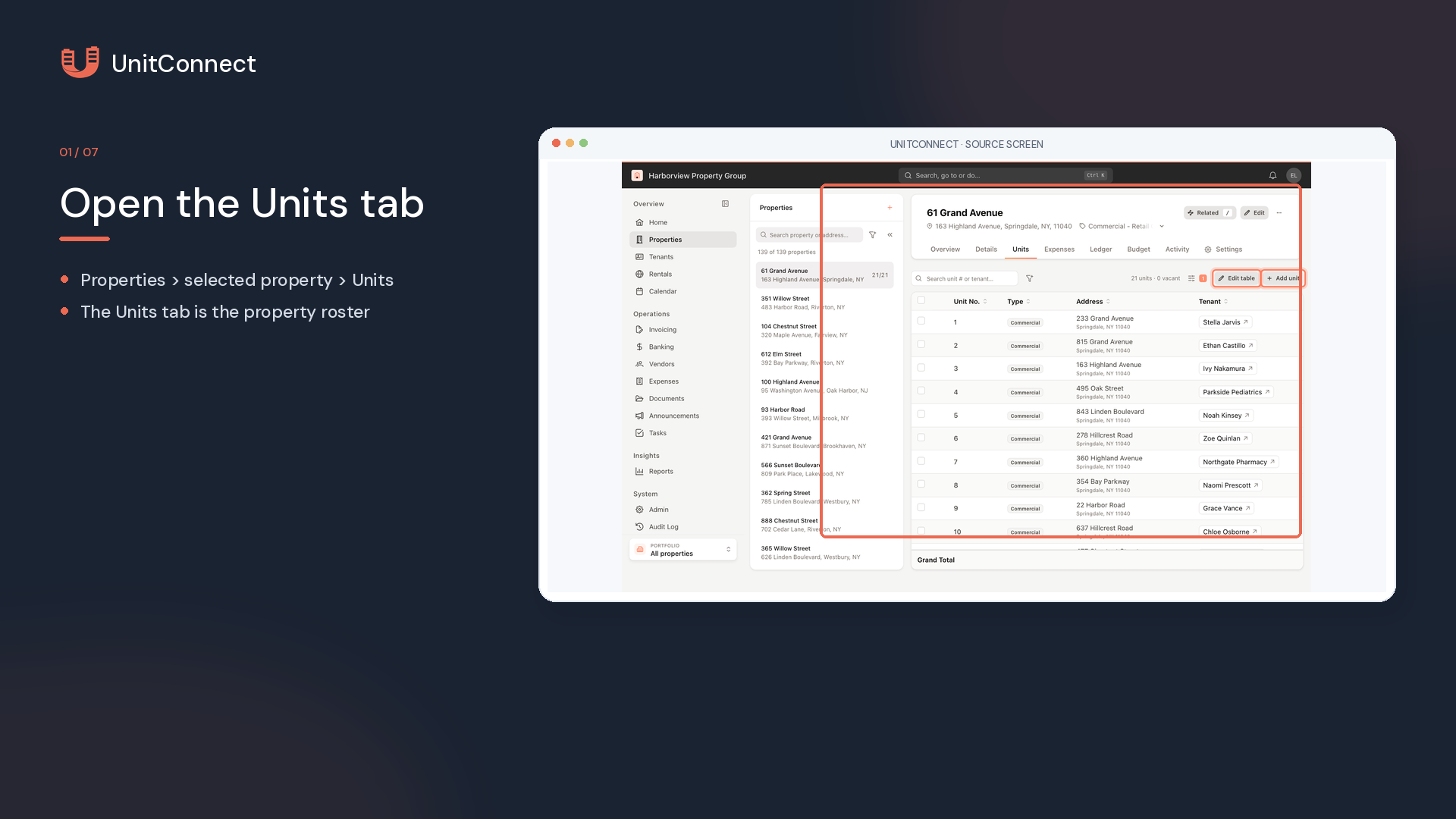
After the property exists, use its Units tab to review or adjust units. The Details tab supports contacts, owners, and more bank accounts. Use Property settings to set up fiscal years, sales tax, and tenant notifications. For related instructions, see Add and manage units, Owners, contacts and bank accounts on a property, and Property settings.
FAQ
Is the property saved as I move through the wizard? The property is not created until you select Create Property on the Review step. The wizard can retain a local draft on the same computer and browser before then.
What should I do when unit shares no longer total 100%? Update the rows or use Redistribute after adding or removing units, then confirm that the Total row is green at 100%.
Official source: Add a new property — UnitConnect Help Center