Signing in should be simple, but a missed character, an expired reset code, or an unconfirmed email can interrupt your day. UnitConnect gives you a direct path to sign in, recover access, verify your email address, and sign out safely when you finish on a shared computer.
Sign in with your email address
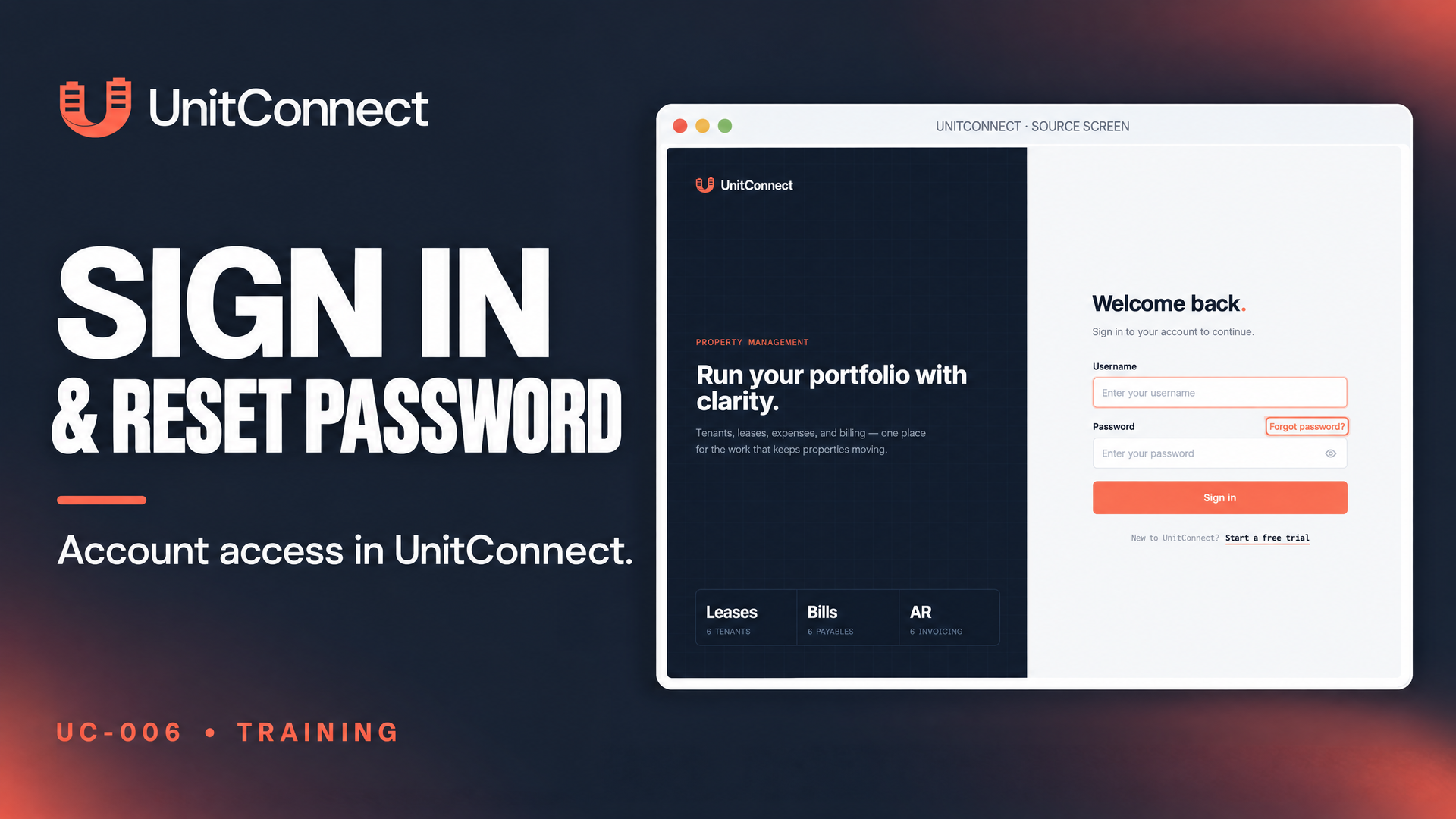
Start at the UnitConnect sign-in page. Your username is your email address. Enter your username and password, then use the eye icon in the password field if you want to check the password you typed before selecting Sign in.
After you sign in, UnitConnect opens the page you were trying to reach or your Home dashboard. If you work in more than one organization, UnitConnect opens your default organization. The official Work in several organizations guide explains that workflow in more detail.
If you see Invalid username or password, first check your username spelling and confirm that Caps Lock is off. Passwords are case sensitive. If the details are correct and sign-in still fails, an administrator may need to review whether your account is locked or deactivated in Admin > Users. See the official Manage users article for that administrator workflow.
Reset a forgotten password
On the sign-in screen, select Forgot password?. Enter the email address you use to sign in, then select Send reset code. For privacy, UnitConnect displays the same confirmation message whether or not an account exists for that email address.
Open the email from UnitConnect and copy its six-digit code. Return to UnitConnect, enter the code in Reset code, and create a new password. Re-enter it in Confirm password. Your new password must be at least eight characters long and include at least one letter and one number. Select Update password. After UnitConnect confirms that your password was updated, return to the sign-in page and use the new password.
If the reset email does not arrive, check your spam folder first. You can then select Resend code. When UnitConnect reports Invalid or expired reset code, request a fresh code rather than reusing the old one.
Confirm your email and sign out safely
If your email address has not been confirmed, UnitConnect shows a blue Verify your email bar at the top of the app. You can continue working, but it is best to confirm the address. Select Enter code, or Resend code if needed, then enter the six-digit email code in Verification code and select Verify.
When you finish on a shared computer, select your avatar in the top-right corner and choose Sign out. UnitConnect also clears the list of recently opened records from that device.
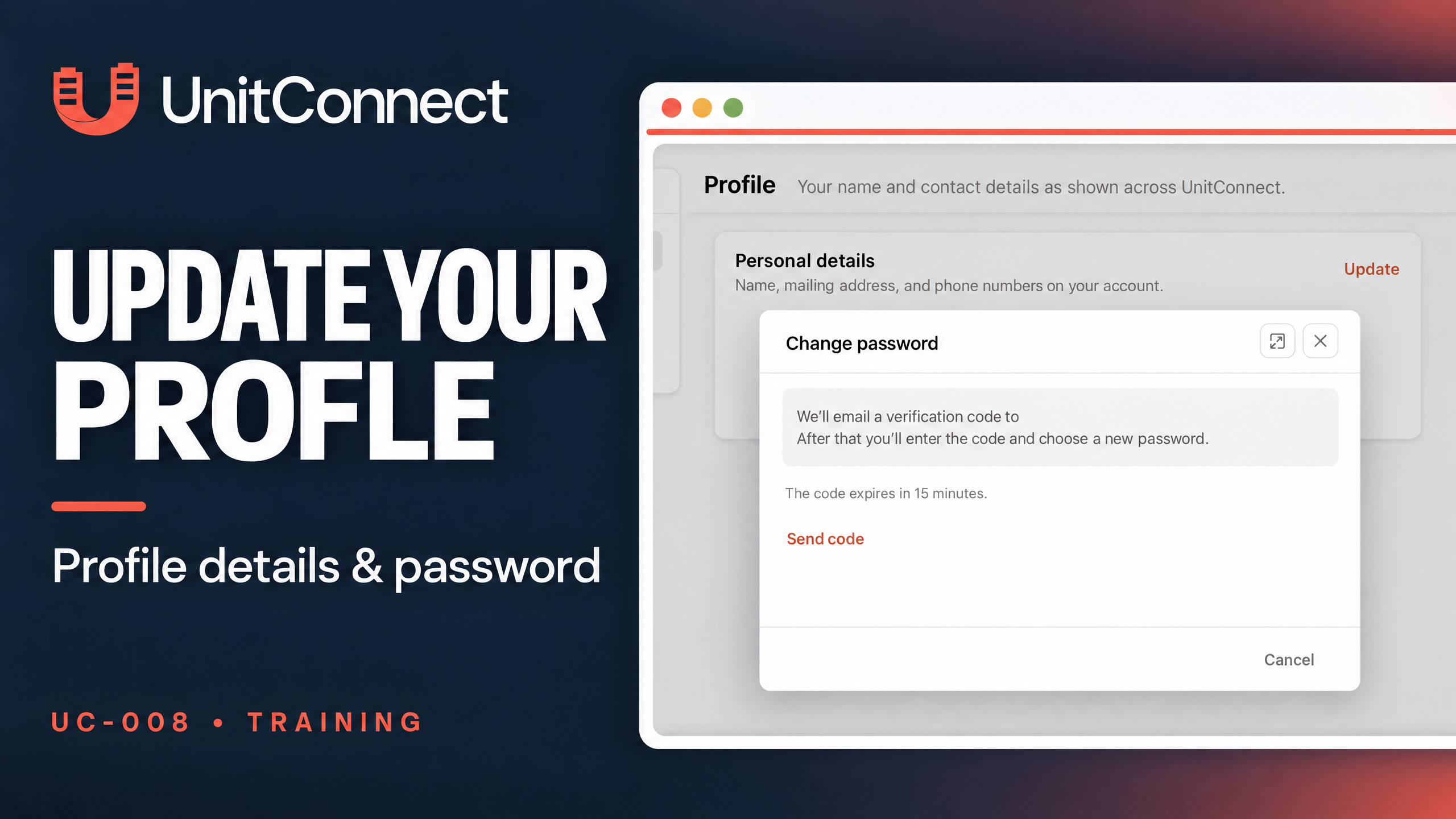
If you already know your current password and simply want to change it, keep your session open and use Settings > Sign-in. The Update your profile and password article provides the related guidance.
Frequently asked questions
What happens if I enter an email address that does not have an account?
The reset request shows the same message whether or not an account exists for that email. This protects account privacy.
Why is my reset code not working?
A code may have expired. Check the email timing, then request a new code. If the message did not arrive, check spam and use Resend code.
What is the password requirement for a reset?
The new password must be at least eight characters and include at least one letter and one number.