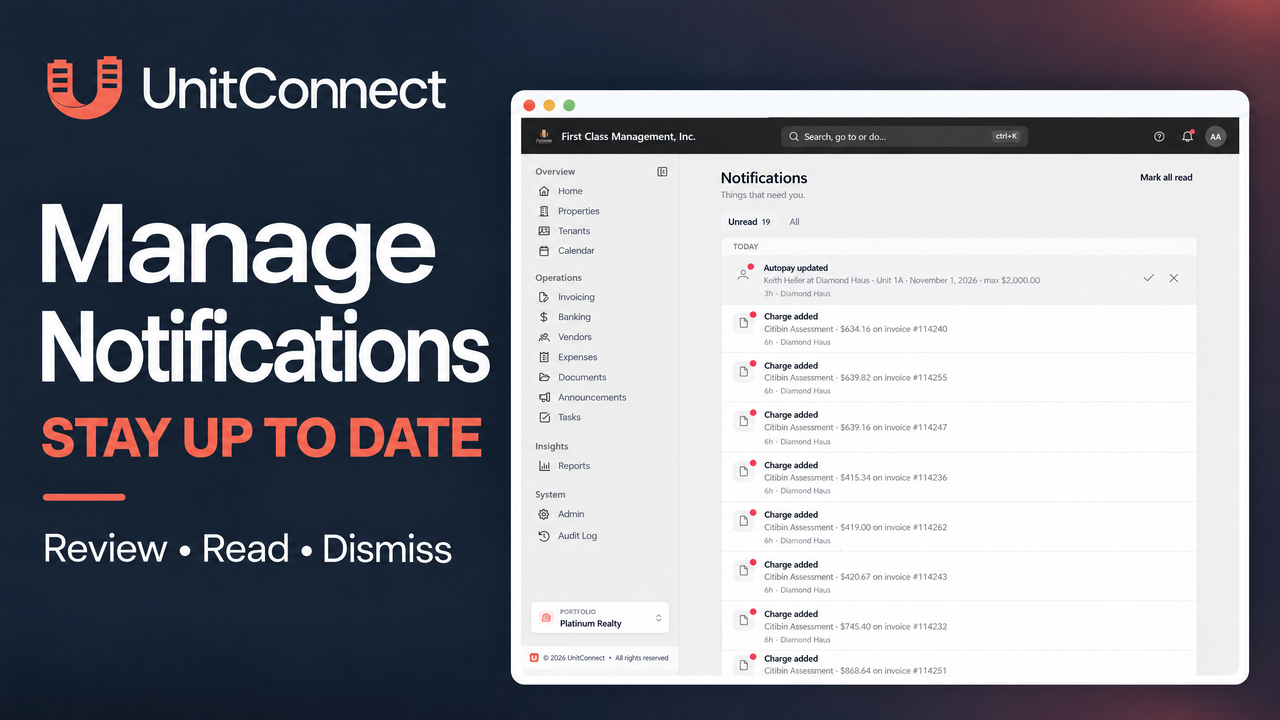
UnitConnect notifications help bring attention to work that may need follow-up. The official guide gives examples such as invoice PDFs becoming ready, invoice emails being queued, and new invoices waiting in the expense inbox. In the recording, the notification list also includes Autopay updates and added charges. Start with the bell in the header for recent activity, then use the full Notifications page when you need to review more of the list.
Start with the notification bell
In the recording, the notification bell is in the upper-right corner. A red dot on the bell means there are unread notifications waiting for attention. Select the bell to open the quick notification panel, which shows recent updates, an unread count, and controls for reviewing alerts.
The official guide explains that you can use All to see the full list or Unread to focus on items that still need review. Unread items use a red dot on their icon and a bold title. A notification can also show when it arrived and, where relevant, the property it relates to.
If an item is tied to a record, select the notification to open that record. The recording shows a Charge added alert opening its associated invoice context before returning to Notifications; no invoice change is made. The official guide notes that notifications without a record link cannot be opened this way.
Mark an item read, unread, or dismissed
Hover over a notification to reveal its actions. The official guide identifies Mark as read with the check-mark icon and Mark as unread with the undo-arrow icon. In the recording, the check-mark control is only hovered; it is not selected.
Choose Dismiss (the X) to remove an item from your notification list. This is different from changing read status. In the recording, selecting the X removes an item and the unread count drops. If you have reviewed everything currently waiting, select Mark all read to update the list at once. The recording shows the remaining unread alerts becoming read and the Unread view displaying “You're all caught up” and “No notifications need your attention”; the alerts are marked as read, not permanently deleted.
Use the full Notifications page
Select View all notifications at the bottom of the panel to open the dedicated Notifications page. The recording shows the Unread and All tabs and action controls on each row. According to the official guide, the page opens on Unread; choose All when you also want to include read notifications.
The official guide describes additional full-page features that are not demonstrated in this recording: grouping notifications under Today, Yesterday, and Earlier, and using Load more to bring in older items. It documents the same actions as the panel: Mark all read, mark an individual item read or unread, and dismiss an item.
The official help also describes automatic cleanup after notifications have been read for a while and the Audit Log as a permanent history of changes for roles with access. Neither automatic cleanup nor the Audit Log is demonstrated in this recording.
Choose delivery preferences by event
The following configuration guidance is from the official help, not shown in this recording. Notification delivery is configurable event by event. In Notification settings, choose whether each event sends an email, an in-app notification, both, or neither. The settings are available through Admin > Notifications > Event notifications for users with the needed permissions, and each switch change saves as soon as you flip it.
FAQ
Can I open every notification?
No. You can select notifications that have a related record. Notifications without a record link cannot be opened.
Is dismissing the same as marking a notification read?
No. Marking an item read or unread changes its read state. Dismissing it removes it from your notification list.
Where is the official help article?
Read the official UnitConnect guide: Notifications.