UnitConnect keeps the same basic frame across the app: a dark header at the top, a navigation sidebar at the left, and the page you are working on in the middle. Once that layout feels familiar, it is easier to move between daily work, find a record quickly, and get help without losing your place.
This guide accompanies the UnitConnect screen-tour video. It focuses on the controls shown in the official Find your way around UnitConnect help article and the situations they support.
Start with the header
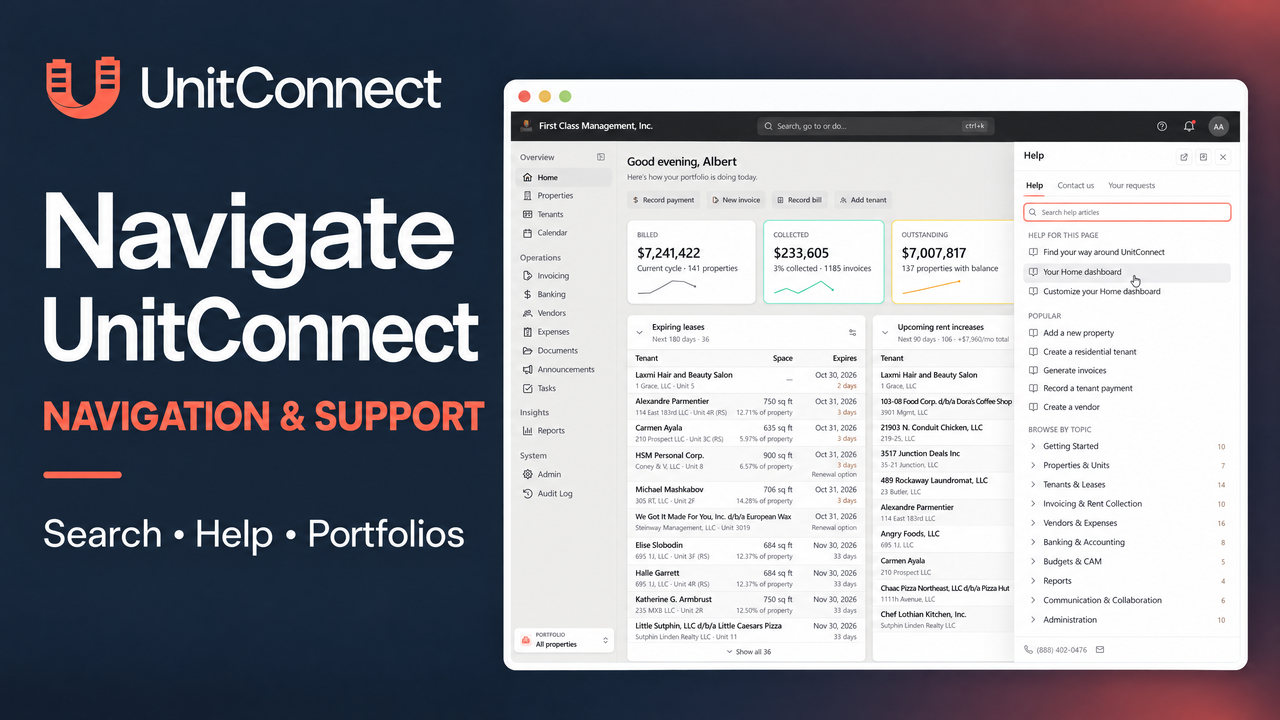
The header is available across UnitConnect pages. The center search field, labeled Search, go to or do…, opens the command palette. Use it to find a tenant, vendor, property, unit, invoice, or expense; jump to a page; or start a common task. You can open the same search with Ctrl + K.
The header also includes the question-mark icon for Help and support, the notification bell, and your avatar. The bell can show a red dot when there are unread notifications. Select your avatar when you need account options rather than a page-level action.
Get help without leaving your work
Select the ? icon to open Help and support. The menu can surface articles for the page you are currently viewing, and its search field lets you search the help library by keyword. The Open help panel option keeps an article beside the active page, which is useful when you want to follow instructions while continuing the task.
For a question that needs assistance, choose Contact support. The official help article notes that the current page and open record are included with the message, so review those details and remove anything you would rather not send. Replies are available in Your requests and may also be signaled by the help icon or notification bell.
Use the account menu for personal settings
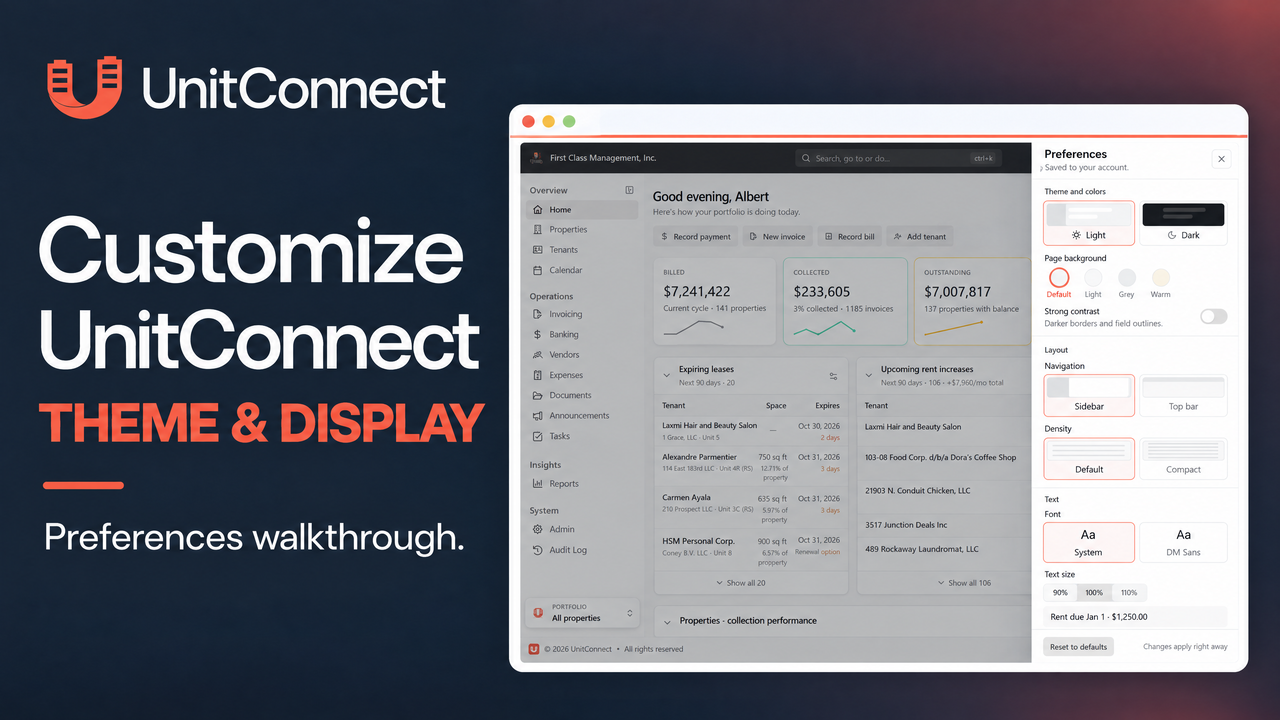
Your avatar menu includes Settings, Preferences, and Sign out. Settings covers your profile, sign-in and password, and invoice-printing preference. Preferences controls the app’s theme, navigation layout, font, scale, density, and contrast. Signing out ends the session on the device you are using.
If you work with more than one organization, use the Workspace box at the top of the account menu to switch. Join a workspace… accepts an invitation code. The official captured account-menu screenshot shows Join a workspace, Settings, Preferences, and Sign out; it does not show the Workspace box, so use the article guidance for that control rather than relying on the screenshot alone.
Navigate by role, then set your portfolio scope
The sidebar groups app areas under Overview, Operations, Insights, and System. What appears there depends on your role and view permissions. For example, some pages require their own view permission, and Rentals appears only when the company uses the public rentals catalog. If a page you need is missing, contact your UnitConnect administrator.
Need more room for the main page? Select the collapse icon beside Overview or press [. On a small screen, the sidebar is hidden; use the menu button at the left of the header to open it. If you prefer horizontal navigation, go to Preferences and set Navigation to Top bar.
At the bottom of the sidebar, the Portfolio box controls the property group in view. All properties means all properties you can access. Choosing a portfolio narrows data on every page to that portfolio’s properties. A portfolio is separate from a workspace: the first scopes properties, while the second identifies the organization you are working in.
FAQ
Why can’t I see a page in the sidebar?
Sidebar visibility is role- and permission-based. Ask your UnitConnect administrator if you need access to a page that is not visible.
Does a portfolio selection affect only the current page?
No. The official help article says that choosing a portfolio narrows data on every page to properties in that portfolio.
Where can I learn more?
Read the official source: Find your way around UnitConnect. Related official guides include Search and keyboard shortcuts, Switch between portfolios, and Change how UnitConnect looks.