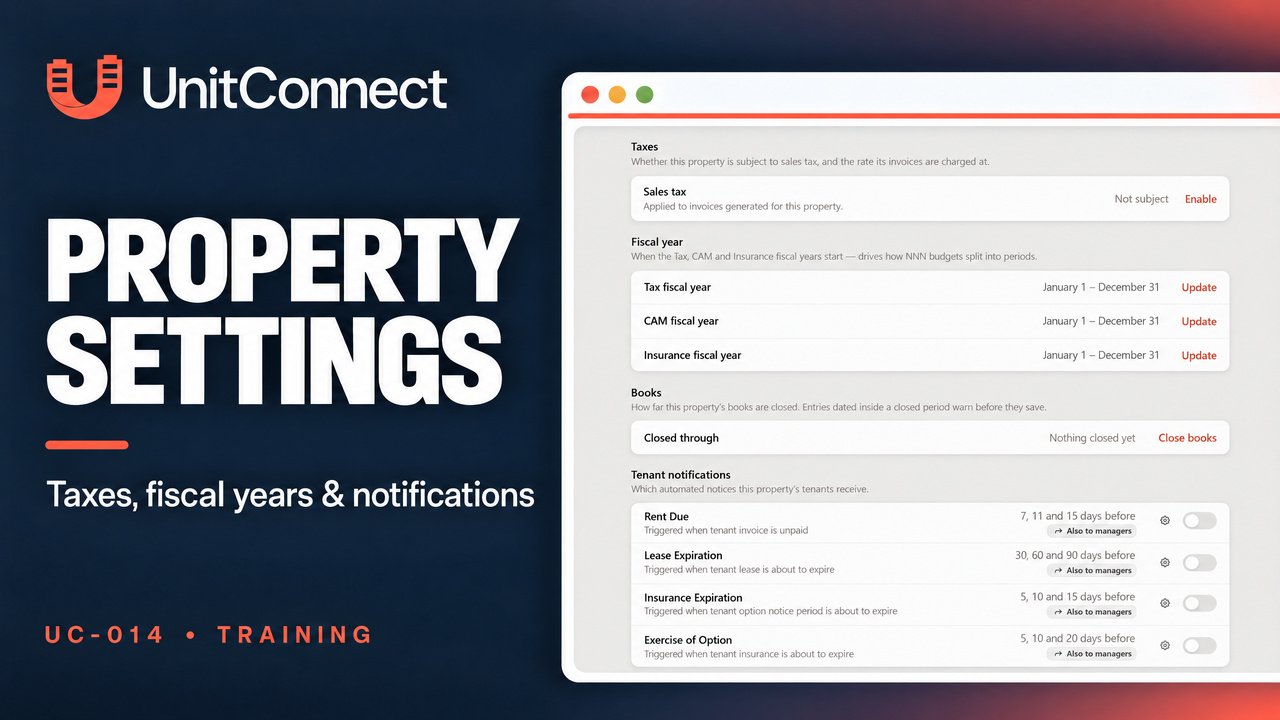
UnitConnect's Property Settings tab brings together sales-tax controls, fiscal-year definitions, books-closed information and tenant notifications. UC-014 shows where to find these controls and how their panels work. No configuration changes are committed in this walkthrough.
Watch the tutorial
Open the property's Settings tab
Select Properties in the sidebar, choose an existing property, then open Settings. The page groups controls under Taxes, Fiscal year, Books and Tenant notifications, with a Danger Zone farther down.
Review sales-tax choices
The Sales tax row starts at Not subject. Select Enable to open Edit Sales Tax. Turning on Subject to sales tax in the draft exposes the rate choices.
The walkthrough reviews the published-rate selector, chooses Custom rate and focuses the percentage field without entering a number. Save Changes is only hovered over; Cancel closes the panel. The returned status is still Not subject, with neither a published rate nor a custom rate saved.
This tutorial explains the app controls, not whether rental sales tax applies to a particular property or jurisdiction.
Inspect Tax, CAM and Insurance fiscal years
The Fiscal year section has separate Tax, CAM and Insurance rows. All three show January 1–December 31 in the example property's existing setup.
Select Update to open Fiscal Year Definitions. Review the starting month and day alongside the corresponding end date. Here, the start values stay January / 1, and the drawer is dismissed without changing the definitions.
Review the books-closing panel
The Books section starts at Nothing closed yet. Select Close books to open Close the books, which includes warning text and a closing-date field.
The panel explains that entries dated on or before the closing date trigger a warning before saving. They are not blocked, and the person's response is retained. The tutorial does not enter a transaction or test this warning.
The date picker opens, but no date is chosen. The field stays blank with its mm/dd/yyyy placeholder, so the Close books action remains disabled. Canceling the panel leaves Nothing closed yet; no closing date is saved and no books are closed.
Review tenant notification activation
Tenant notifications lists Rent Due, Lease Expiration, Insurance Expiration and Exercise of Option. Each row displays a schedule, settings gear and switch.
Selecting a notification switch opens an activation dialog. The one shown is titled Activate “Exercise of Option”. Its checkbox, “Also activate for all current tenants (overrides tenants switched off individually)”, is optional. It can also enable this notice for current tenants who were switched off individually; it is not a required acknowledgment.
The checkbox stays unchecked and Activate remains enabled. The walkthrough chooses Cancel, not Activate, so no notification is activated and all four switches remain off.
Hovering over the gear icons shows tooltips for notification editing in Admin. No Admin editor is opened and no schedule is changed.
Locate the Danger Zone
The walkthrough only hovers over Terminate. It does not open a termination dialog or terminate the property.
When reviewing your own settings, check the returned page after leaving a panel. This tutorial leaves sales tax at Not subject, the three fiscal years at January 1–December 31, books unclosed and all four notices off.
Open UnitConnect, or consult the official Property Settings help.