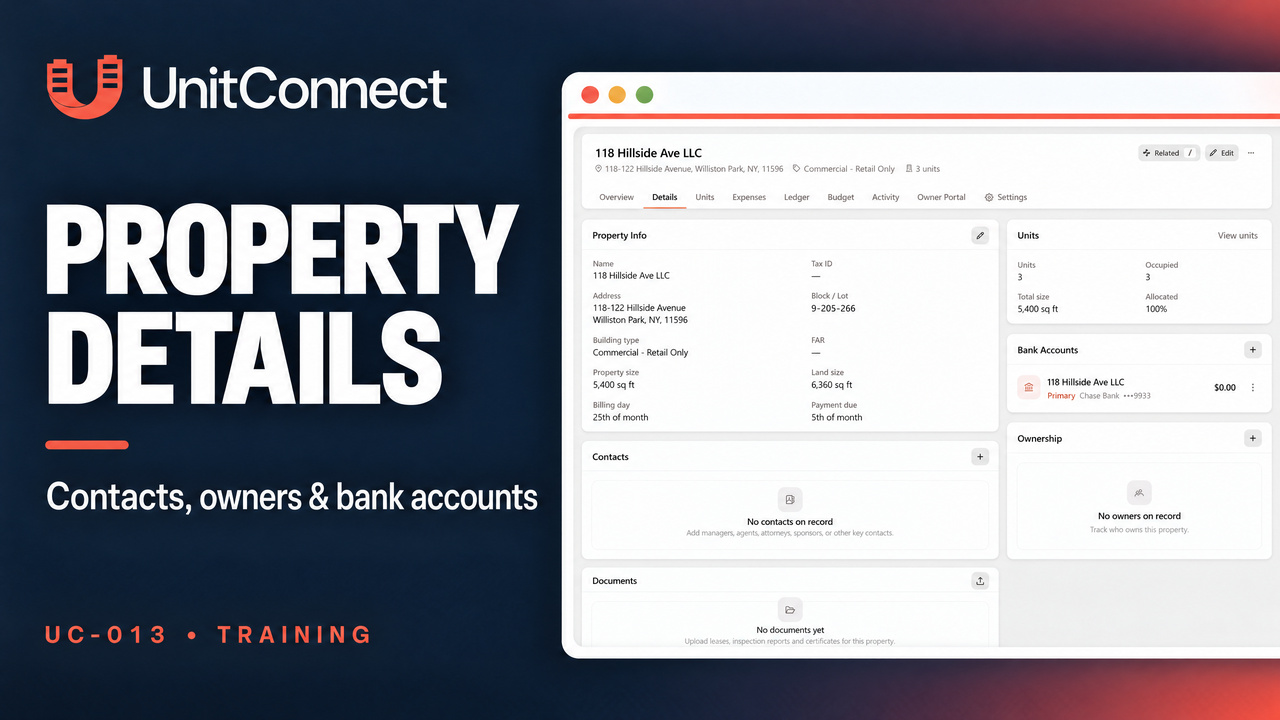
The Details tab in UnitConnect brings a property's information and related records into one view. In UC-013, learn how to add two property contacts and find the controls for owners, bank accounts, property information, documents, notes and custom fields. Only the two contacts are saved in this walkthrough; the other sections are reviewed without completed updates.
Watch the tutorial
Open the property's Details tab
Select Properties in the sidebar, choose an existing property, and open Details. Look for the Property Info, Contacts, Ownership, Bank Accounts and Documents cards. Notes and Custom Fields appear farther down the page. Check the card heading before selecting its plus, pencil or upload control.
Add two property contacts
On Contacts, select the plus icon to open Add person. Enter the person's name and role or title. The form also has phone, email and mailing-address fields.
The first example includes the role Manager and a phone number. Select Save, then use the plus icon again to add and save a second contact. The second example leaves the role and phone blank. Both contacts remain listed; adding the second does not replace the first.
Each contact row has an Options control. The walkthrough interacts with these controls, but does not show a completed primary-contact assignment.
Review ownership options
Select the plus icon on Ownership. From existing lets you look for an owner already in UnitConnect. The new-owner form includes ownership-share and start-date fields.
The walkthrough reviews the existing-owner list and blank new-owner form, then closes it without selecting, entering or saving an owner. No owners on record remains on the card.
Review bank-account choices
The Bank Accounts card already has a primary account. Select its plus icon to inspect Existing account and New account options. The form is dismissed without creating or linking another account; the existing primary account remains.
Find property editors and documents
On Property Info, the pencil opens the editor. It is opened and closed here without saving a property change.
On Documents, the upload control opens, but no file is selected or uploaded. The card still shows No documents yet.
For Notes, select the pencil, not a plus icon. The editor stays blank, with no note entered or saved.
For Custom Fields, the pencil opens Label, Value and Add field controls. The demonstrated row stays blank, and the editor is closed without adding a field.
Return to the Details cards to check your results after making changes. This tutorial ends with two saved contacts and the pre-existing bank account, with no other completed updates.
Open UnitConnect, or see the official help on property owners, contacts and bank accounts.