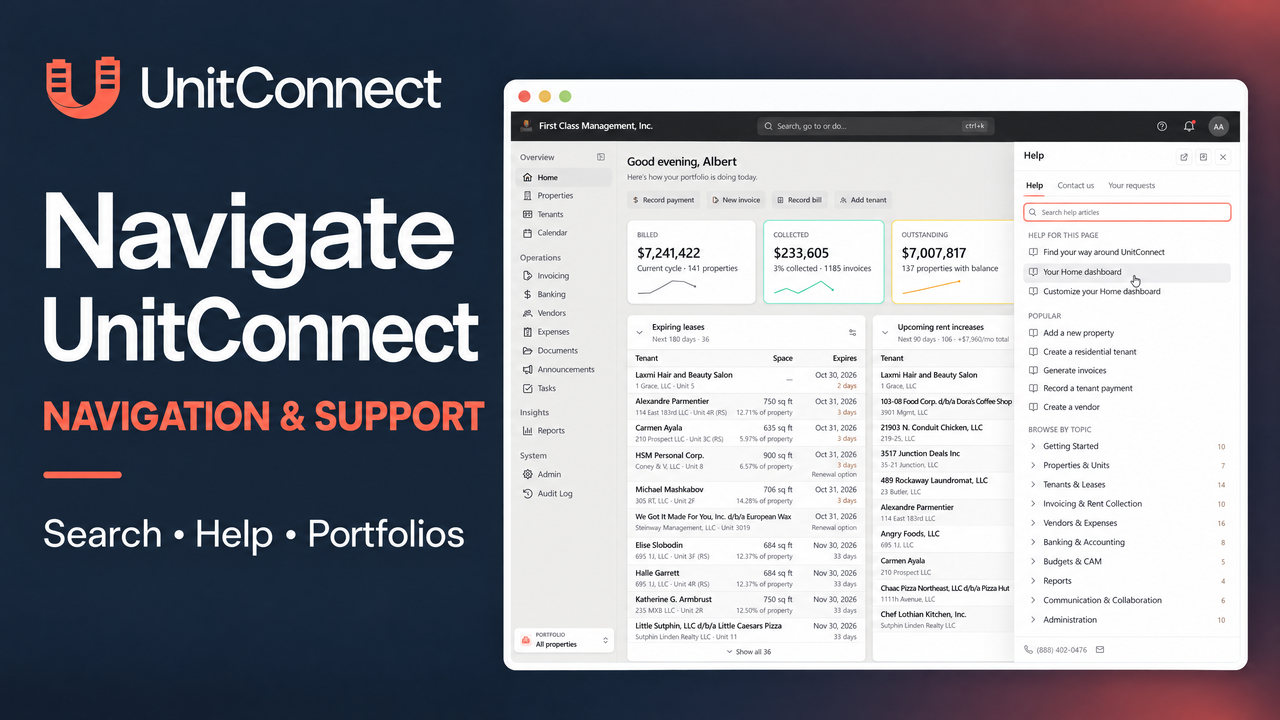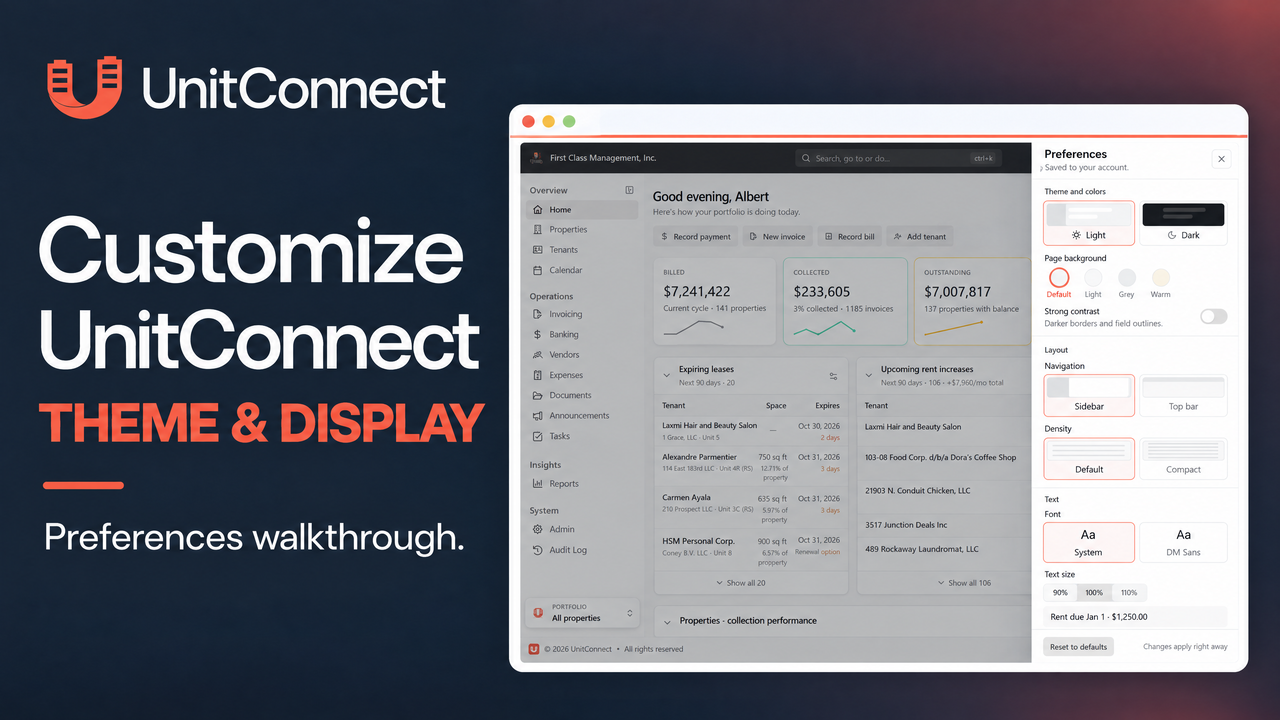
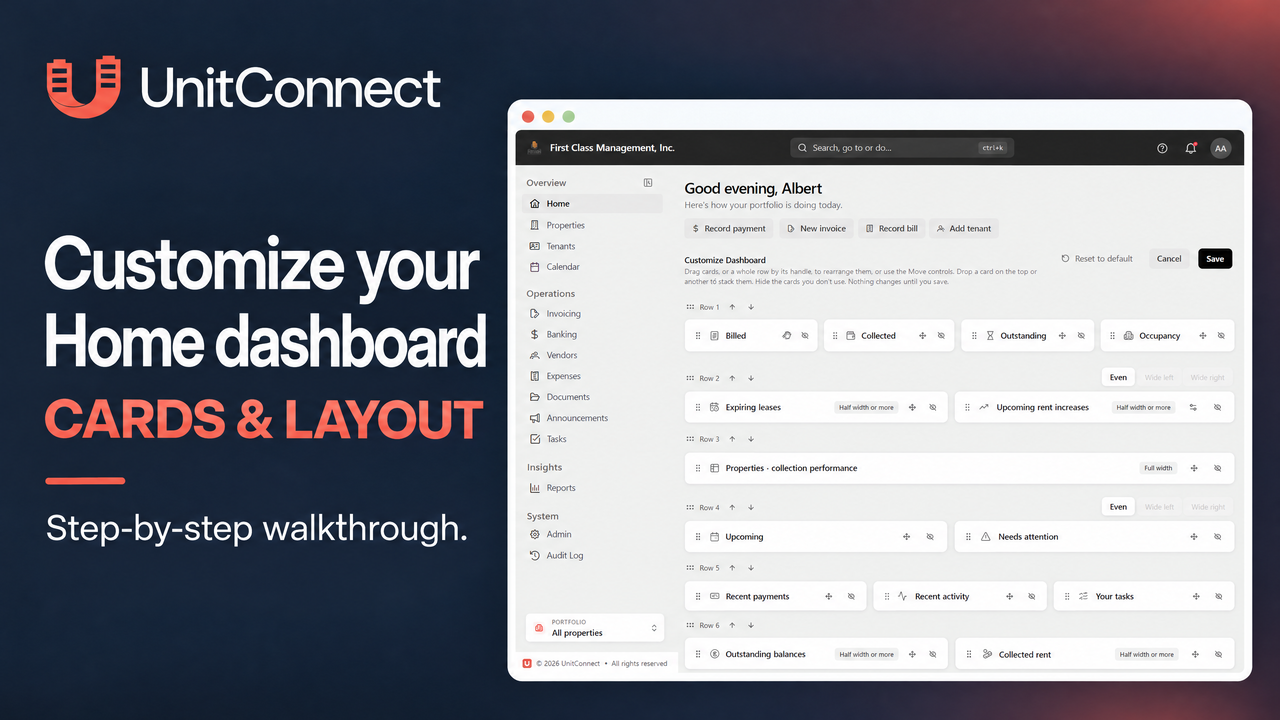
Your UnitConnect Home dashboard can reflect the information you check most often. The Customize view lets you hide cards you do not need, put related cards together, move rows, and choose a different time window for the Upcoming rent increases and Expiring leases cards.
This is a personal setup. Your arrangement and card settings apply to you, while other people in the account keep their own layouts. If you work in more than one organisation, each organisation keeps its layout separately. The greeting, Get started checklist, and quick actions stay fixed in place.
Start in Customize
From Home, select Customize in the top-right corner. Cards change into compact placeholders so you can review the complete arrangement. This is the right place to make several layout changes together, because the changes remain unsaved until you select Save. If you select Cancel, UnitConnect closes Customize and leaves the dashboard as it was.
Hide, restore, and reorder cards
Each card has a crossed-out-eye Hide button in Customize. Selecting it moves the card to Hidden Cards below the dashboard rows. The remaining cards in that row widen to use the available space.
To restore a hidden card, select it under Hidden Cards. It returns as a row of its own at the bottom of the dashboard, where you can move it into the position you want. You can also drag a card to Hidden Cards, or drag a hidden card back into the layout.
To rearrange cards, drag from the dotted handle on the left side of a card. An orange bar tells you where the card can land. Dropping beside another card joins that row; dropping in a gap starts a new row; and dropping elsewhere in the same row swaps the cards. When no orange bar appears, that position is not allowed.
Dragging is not the only option. Select a card’s four-way-arrow Move button to move it left, right, up, or down one step at a time. This is useful when working from a keyboard or touch screen. Directions that do not have a valid destination are greyed out.
Keep rows and widths valid
A row can be moved as a group. Use the dotted handle beside its row number or the row’s up and down arrows; the cards and their widths move together.
For a row with two cards, choose Even, Wide left, or Wide right. UnitConnect also shows width labels in Customize. Properties · collection performance needs a full row. Receivables aging, Upcoming rent increases, and Expiring leases need at least half of a row, so they cannot be the narrow card in a pair. Figure tiles share rows only with other figure tiles. On a narrow window or phone, the same rows stack into one column in the same order.
Adjust the lease-card time window
Both Upcoming rent increases and Expiring leases use a 90-day look-ahead by default. Select the sliders settings button on the card, then choose 30, 60, 90, 180, or 365 days. You can also choose Custom and enter a whole number from 1 to 365 days. Select Apply to confirm the choice.
When you change this setting directly on the card, UnitConnect saves it immediately and reloads the card. When you change it from Customize, it saves with the rest of the layout only after you select Save. The card subtitle shows the active window, such as “Next 180 days.”
Save, cancel, or return to the default layout
Select Save to keep the current layout and close Customize. Select Cancel to discard changes that have not been saved. Reset to default restores every card and its default setting after a confirmation. That option is available once you have saved an arrangement or changed a card setting.
If you leave Home with unsaved changes, UnitConnect asks whether to discard them. Select Keep editing to return to Customize. New UnitConnect cards appear at the bottom of the dashboard where they fit, while cards you previously hid remain hidden.
FAQ
Does customizing Home change anyone else’s dashboard?
No. The help article states that your arrangement and card settings are yours alone; other people in the account retain their own setups.
Why can’t I drop a card where I want it?
A missing orange placement bar means the destination does not meet the dashboard’s row or card-width rules.
Official help source: Customize your Home dashboard