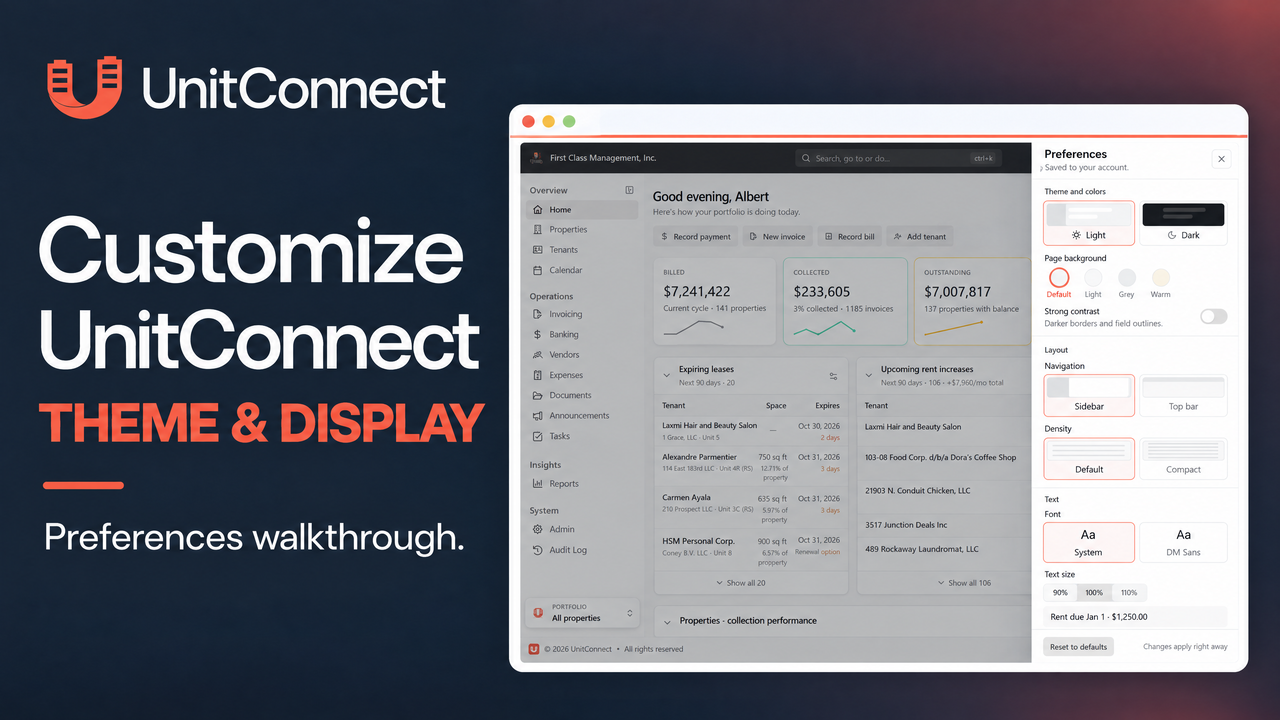
The way UnitConnect looks can be adjusted from one Preferences panel. Use it to set the app’s color scheme, choose a navigation layout on larger screens, change table spacing, and tailor text choices. The settings take effect as you choose them, so there is no separate Save button.
Open the Preferences panel
In the top-right corner of UnitConnect, select your avatar and then choose Preferences. The panel opens on the right side of the page. Select × or press Esc when you are finished. The account menu is also covered in UnitConnect’s official guide to finding your way around UnitConnect.
Choose theme, background, and contrast
The Theme and colors group controls the overall look of the app:
Choose Light or Dark for the app color scheme.
When using the light theme, choose a Default, Light, Grey, or Warm page background. The Warm option is the cream background used on classic UnitConnect pages.
Turn Strong contrast on if darker borders and field outlines are easier for you to see.
The selected option is identified in the panel with an orange outline. Since these preferences apply right away, you can compare the available choices without committing to a save step.
Arrange navigation and table spacing
Under Layout, larger screens can use either Sidebar navigation or Top bar navigation. The sidebar keeps the main menu at the left. With the top bar, pages that do not fit are placed in More. On a phone or a small browser window, navigation is opened with the ☰ menu button instead.
The Density control offers Default and Compact. Choose Compact when you want more rows visible in tables. It changes row spacing, not the size of the text.
Set font and text size
The Text group lets you choose System or DM Sans for the app font. System uses your computer’s standard font. You can also set text size to 90%, 100%, or 110%. The sample line beneath the controls updates as you make a selection, which makes the choice easier to review before continuing your work.
Reset or carry your choices with you
To return to the original appearance, select Reset to defaults at the bottom of the panel. This restores UnitConnect’s out-of-the-box appearance settings.
Appearance preferences are saved to your UnitConnect account. When you sign in on another browser or computer, the settings appear the next time UnitConnect loads there.
FAQ
Do I need to save after changing an appearance setting?
No. UnitConnect applies these changes immediately, and the Preferences panel does not require a separate save action.
Why is the navigation choice unavailable on my phone?
The Navigation setting is for larger screens. On a phone or small window, use the ☰ button to open the menu.
What does Compact density change?
Compact density fits more table rows on screen without making the text smaller.
Official source
For the current labels and complete setting descriptions, see the official UnitConnect Help Center article: Change how UnitConnect looks.