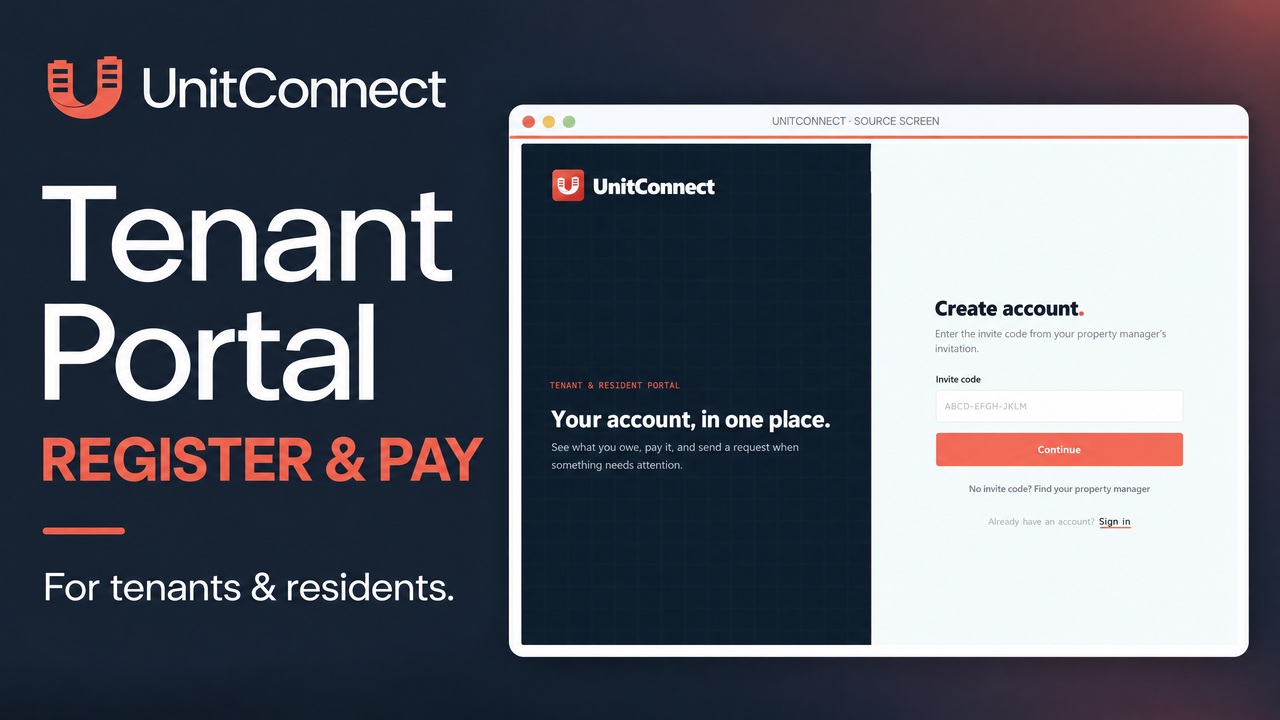
Getting started with the UnitConnect Tenant Portal? This guide walks tenants and residents through registration, signing in, reviewing invoices, and finding the payment options available for their account.
Watch the Tenant Portal video tutorial on YouTube.
The 1-minute, 53-second video shows the registration and payment controls. It does not show completed registration, payment-method entry, or a successful transaction. Follow the prompts in your own portal to finish those steps.
1. Get your invitation code
Your property manager provides the invitation code you need to register. If you have not received one, contact your manager before creating an account.
To reach the tenant sign-in page, go to UnitConnect.com, select Sign In, and choose Tenants and residents. Use this tenant option rather than the property-manager free-trial signup.
2. Create your account and sign in
On the tenant sign-in screen, select Create an account. Enter the invitation code from your property manager and select Continue.
Complete the registration form with your first and last name, email address, password, and invite code. Use your own details and follow any remaining on-screen instructions. Once your account is ready, return to Sign in, enter your registered email, and follow the prompts to access the portal.
3. Review your balance and invoices
The left-hand menu takes you to Home, Billing, and Payments.
On Home, check your balance due and recent billing activity before paying. In Billing, select an invoice to review its details. You can also open its PDF statement.
If a charge does not look right, contact your property manager before proceeding. Your manager can help with invoice questions and property-specific billing information.
4. Start a one-time payment
Open Payments and choose Pay now. Select Add payment method and follow the secure prompts, or choose a saved method if one is available.
Before confirming, review the payment amount, payment date, and any fees displayed. Complete the remaining steps in your portal and check the resulting payment status.
Payment choices and any displayed fees depend on your property manager’s configuration. Follow the options shown for your own account; reaching the payment screen does not mean a payment has been completed.
5. Review optional Autopay settings
If you want to use Autopay, open the Autopay tab and select Set up Autopay. Add a payment method, choose the day of the month, and set a payment limit. Review your choices and complete setup in your portal.
Important: If your balance is higher than your Autopay limit, the payment is skipped rather than partially charged. Keep your settings up to date and check your payment status, especially if your balance changes.
6. Contact your property manager for help
For questions about your invitation, portal access, or billing, open Contact and send your manager a message. Your property manager is the right contact for account access and the payment options enabled for your property.
Frequently asked questions
What if I do not have an invitation code?
Contact your property manager. You need the manager-provided code before registering for the Tenant Portal.
Why do my payment options look different?
The available options depend on your property manager’s configuration. Review the current prompts, payment amount, date, and any fees in your own portal.
Does an Autopay limit allow a partial payment?
No. As demonstrated in the tutorial, a balance above the limit causes Autopay to skip the payment rather than charge part of it.
Does this video show a completed payment?
No. The video shows where to start. Payment-method entry and final transaction confirmation are not demonstrated. Complete those steps in your portal and check the resulting status.
Keep the video handy
Watch the UnitConnect Tenant Portal tutorial whenever you need a refresher, and explore more UnitConnect videos for additional guidance.
Learn more about the UnitConnect Tenant Portal.
About UnitConnect
UnitConnect is property management software for commercial and residential properties. The Tenant Portal connects tenants with the billing information, documents, and other options their property manager chooses to make available.