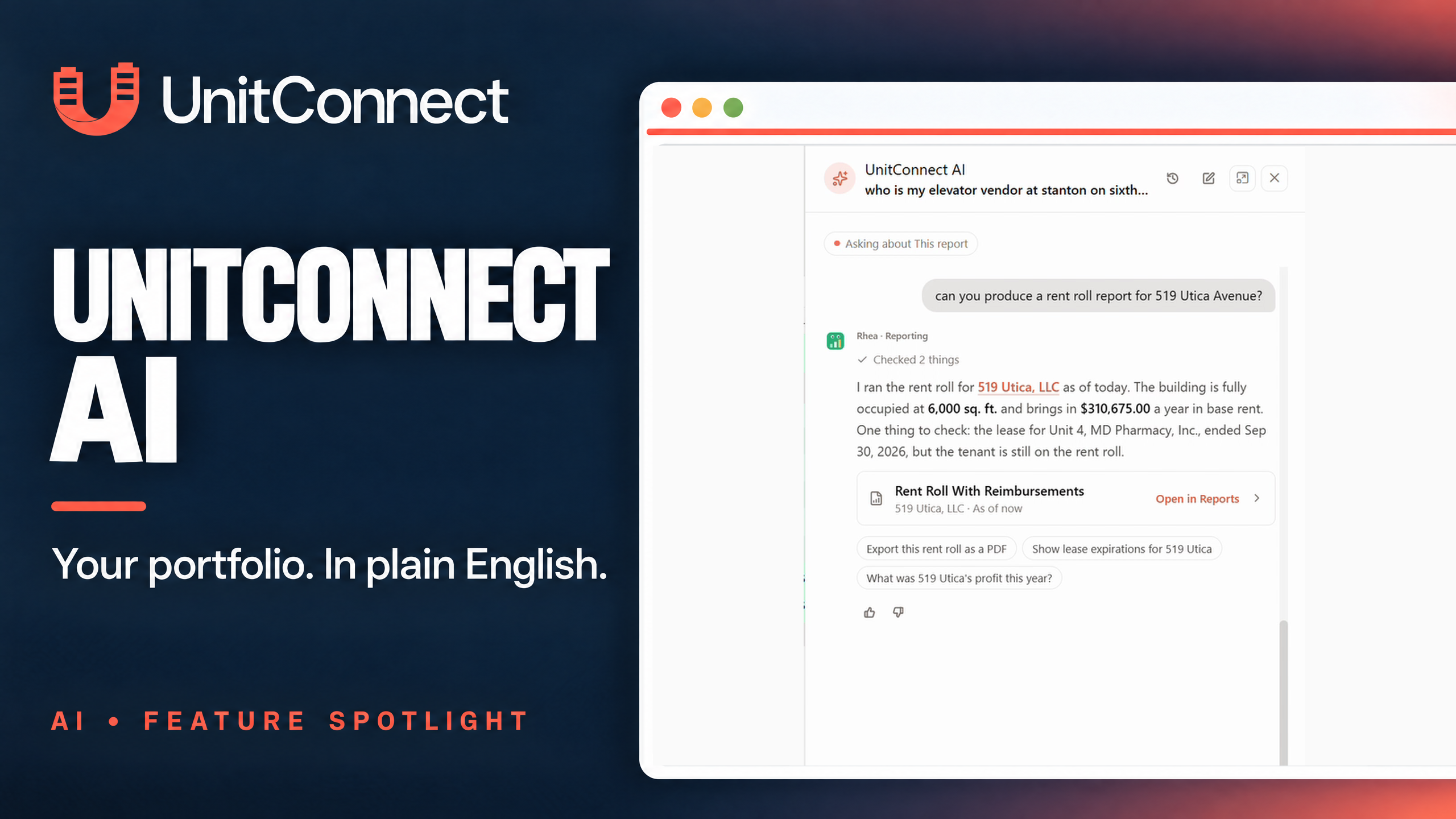

A saved report view in UnitConnect remembers a layout and its filters, not a frozen set of results. Relative periods stay current, and shared views run fresh when opened. Before sending a report, check the selected properties and period. If you changed filters after running it, rerun the report to review the new results—or use the download option knowing that it uses the current filters, not the faded results still on screen.
For a portfolio assistant preparing a regular report, the familiar view name is a starting point. It is not proof that today’s output covers the intended properties, dates or audience. Here is a focused way to check what you are about to send.
Know what the view brings back
The saved report views guide explains that a view stores columns and headings, sort and filters. Its period is kept as a relative window: a setting such as last month to today stays current each time you open it.
That makes a view useful for recurring work, but it also means opening the same view later does not reproduce an earlier report. Likewise, Run again under Last run on the Reports landing page uses the same filters, with a relative period interpreted as of today.
Decide which question you need to answer. A rolling operational review and a report for a specified historical period are different requests. For the latter, inspect the available date controls and set the intended period instead of relying on the view’s name.
Check scope before reading the rows
Open Reports in the sidebar and choose the relevant report or saved view. In a report’s Views menu, click the view’s name to apply it; a tick marks the selected view. Back to the report’s defaults removes the applied view.
Each report offers only the filters it uses. According to the current run-and-export guide, common controls include a property picker and a period. Some reports also offer portfolios, additional tenant, bank-account or vendor filters, or Cash and Accrual options. Do not assume every report has all of these controls.
Read the selected properties before concentrating on totals. Confirm the period and any report-specific options that matter to the request. The Reports page requires permission to view reports, and a report includes only properties you can access. A colleague’s differently scoped result is not necessarily a calculation error; property access may be different.
This check is about selecting the requested output. It does not determine which accounting basis your organization should use or replace your team’s review of the underlying records.
Resolve the changed-filter bar
A subtle mismatch can arise after you run a report and then adjust a filter. UnitConnect keeps the previous results on screen, faded, beneath a bar explaining that the filters have changed.
At that point, the visible rows and the currently selected filters are not the same run. Choose the next step deliberately:
- Click Run report to update the on-screen results before reviewing them.
- Use Download PDF or Download Excel in the changed-filter bar to get a file for the current filters without displaying that new run first.
A download always uses the filters as they are set now. When the on-screen report matches them, the file is that report, with the columns and headings you see. Do not check the old faded total and then assume it describes the newly downloaded file.
For a report you intend to inspect before sending, rerun after the scope change. Review the updated rows and the displayed run time. Then open the exported file to confirm the report and period are the ones you meant to deliver. If there is no matching data, the download produces a document that says so; an empty result deserves a filter check rather than an invented explanation.
Keep the layout intentional
After running a report, use the sliders icon to arrange columns. You can show or hide them, rename headings with the pencil, move columns with the arrows, or use Reset to return to the report’s default columns.
If you want to reuse that arrangement, open Views and choose Save current layout as a view…. Enter a name, optionally select Open this report with this view, and save. Run the report before saving if you want custom columns or sort included; without a run, the saved view keeps the report’s default columns.
Choose a name that helps a teammate understand the layout’s purpose, such as “Two-property review — rolling period.” It still needs a scope check on the day it is used. If you update an existing view with the pencil, you are updating it to the current layout. Deleting a view removes the saved layout, not the underlying property records.
Example: narrowing a regular review
Imagine a portfolio assistant, Morgan, who normally reviews a report covering the fictional Pine Office and River Retail properties. The team uses a saved layout with a rolling period on a report that supports those property and period selections.
Today, a colleague asks for Pine Office only. Morgan applies the familiar view and runs it, then changes the property picker to remove River Retail. The old two-property results remain faded while the filter-change bar appears.
Morgan should not describe that old result as Pine Office’s result. If they download immediately, UnitConnect prepares the file using the new Pine Office filter. To review the same output before sending it, Morgan instead clicks Run report, checks the refreshed rows, then downloads and opens the file.
The view also does not preserve the previous week’s data. If the colleague asks for an earlier reporting period, Morgan sets and verifies that period rather than assuming the rolling view recreates the earlier file. The names and request here are illustrative; the actual report’s available controls govern the workflow.
Choose between a file and a live shared view
A PDF or Excel download is a file you can inspect and deliver. A shared saved view behaves differently: whoever opens it sees the report run fresh with current data, not a snapshot of what you reviewed earlier.
The sharing choices also have different access consequences. Private limits the view to you. Everyone in your organisation lets signed-in colleagues open it read-only, with each colleague still seeing only properties they can access.
Anyone with the link requires no sign-in and runs with your property access. Anyone holding that link, including someone outside the company, can read it until it expires or is revoked. Do not assume it is restricted by the recipient’s account permissions. Choose its expiry intentionally and use Revoke link when access should end. Replacing it through New link and Replace link stops the old link from working.
Before sharing, match the delivery method to the request: a file you have checked, an internal reusable view, or a deliberately authorized external live link. State the report’s scope and whether the recipient is getting a file or a fresh-running view. That small clarification prevents a saved layout from being mistaken for a historical snapshot.
Want to test this with one of your team’s regular reports? Schedule a UnitConnect demo focused on saved views, changed-filter exports and choosing the right sharing method.